

Check a certificate a supplier sent
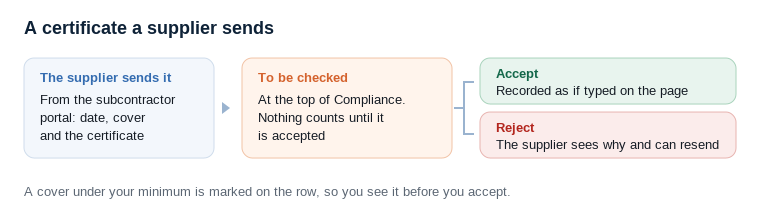
A subcontractor can send their renewed insurance or licence through the subcontractor portal. It does not count until someone in your office has looked at it and accepted it, so a wrong or unreadable certificate never clears a supplier by itself.
Before you start
Section titled “Before you start”- Who can do this: anyone with Manage prequalification and compliance documents. Administrators always can. Without it you can see what was sent, but not accept or reject it.
-
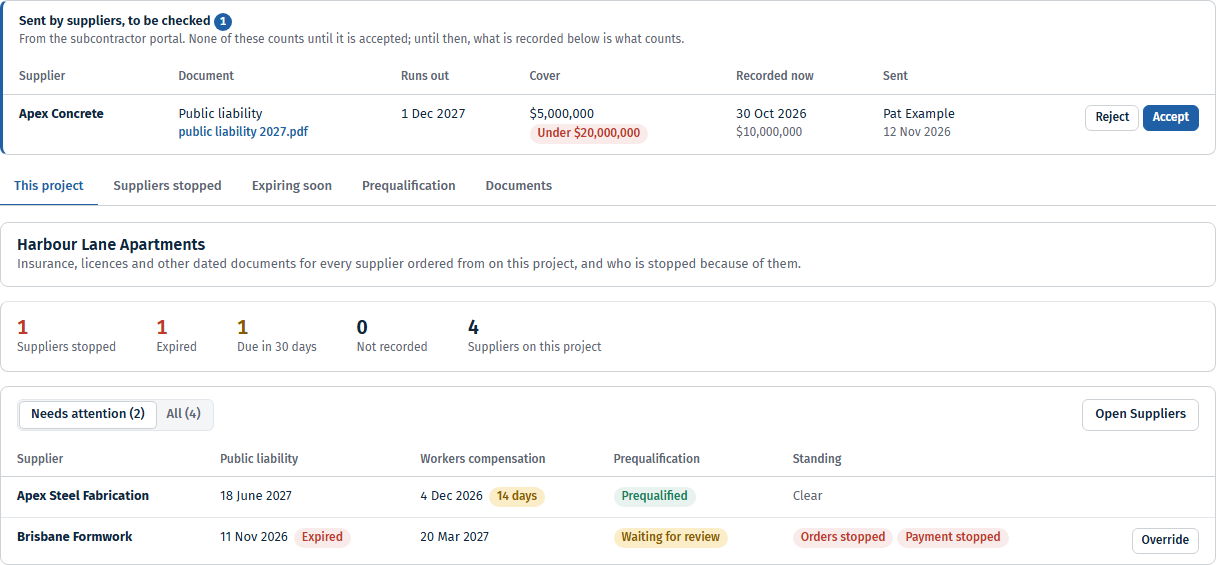
Open Compliance. Certificates waiting to be checked are listed at the top of the page under Sent by suppliers, to be checked, with how many there are. Nothing is shown there when none are waiting.
-
Each row shows the Supplier, the Document, the day it Runs out, the Cover they gave, what is Recorded now and who Sent it and when. A cover under your minimum is marked, for example Under $20,000,000.
-
Choose the file name under the document to open the certificate and read it.
-
If it is right, choose Accept. The date, cover and certificate are recorded exactly as if you had typed them on this page, and the row leaves the list.
-
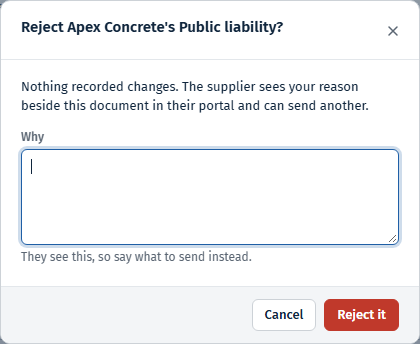
If it is not right, choose Reject, type Why (the supplier sees it, so say what to send instead), then Reject it.
What happens next
Section titled “What happens next”- After Accept, if the supplier was stopped only because of this document, their row on This project says Clear, and orders and payment go ahead.
- After Reject, nothing recorded changes. The supplier sees your reason beside the document in their portal and can send another.
Good to know
Section titled “Good to know”- On the This project tab, a supplier with a certificate waiting shows To check beside their name, and Sent to check lists only those suppliers.
- What is recorded now keeps counting until you accept the new one.