

Enter an opening balance
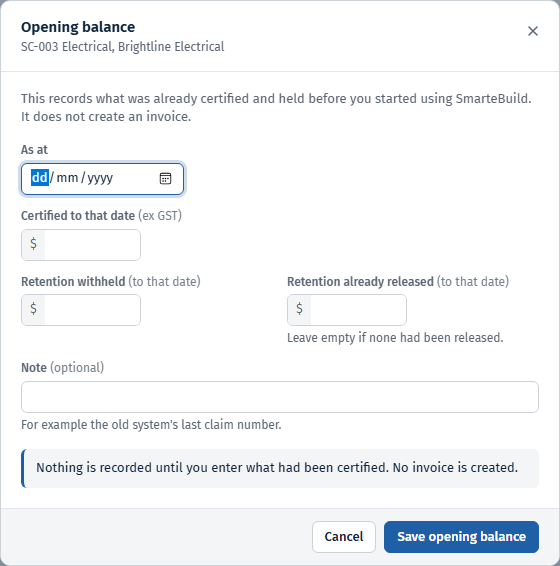
When a subcontract was already under way before you started using SmarteBuild, record what had been certified and the retention held at that date. The first claim here then starts from the right figures, and the retention already held counts towards the limit.
Before you start
Section titled “Before you start”- You need the “Release retention” permission.
- The subcontract is Executed or Complete, and has no claim here yet, not even one being assessed.
-
Open the subcontract and the Terms tab. Under Before SmarteBuild, choose Enter an opening balance.
-
In As at, choose the date the figures are as at.
-
Under Certified before, choose One total and type Certified to that date, or choose Line by line and type it against each schedule line. One total is spread over the lines by their value.
-
Type Retention withheld to that date, and Retention already released if any was.
-
If the subcontract has a deposit, type Deposit paid and Deposit recovered to that date.
-
Add a Note if it helps, for example the old system’s last claim number, and choose Save opening balance.
What happens next
Section titled “What happens next”The Terms tab shows the opening balance. The first claim shows it as previously certified on every line. Its retention appears first in the subcontract’s retention ledger and in the Retention Register.
Good to know
Section titled “Good to know”- No invoice is made and no approval is needed: it was certified and paid in the old system. Only retention released later makes an invoice.
- Once a claim has been entered, the opening balance is locked. To correct it, delete that claim first while it is still being assessed.
- Change replaces the earlier entry; it never adds to it. Remove the opening balance takes it off.
- Retention released before SmarteBuild counts against the share released at practical completion.