

On site, the phone page
On site is a page of SmarteBuild Commercial made for a phone. It is for the people on site: approve what is waiting on you, log and close defects with photos, do inspections, and check who is cleared to start under the SWMS register.
It is not an app from the App Store or Google Play. It opens in the phone’s own browser, with your usual SmarteBuild login, and can be added to the home screen so it opens full screen like an app. It needs signal: it does not work offline.
What is on it
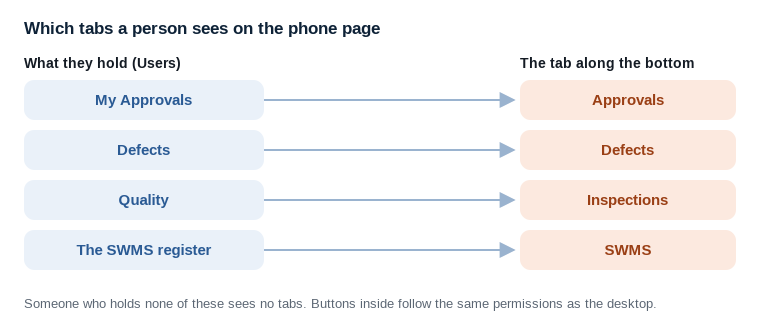
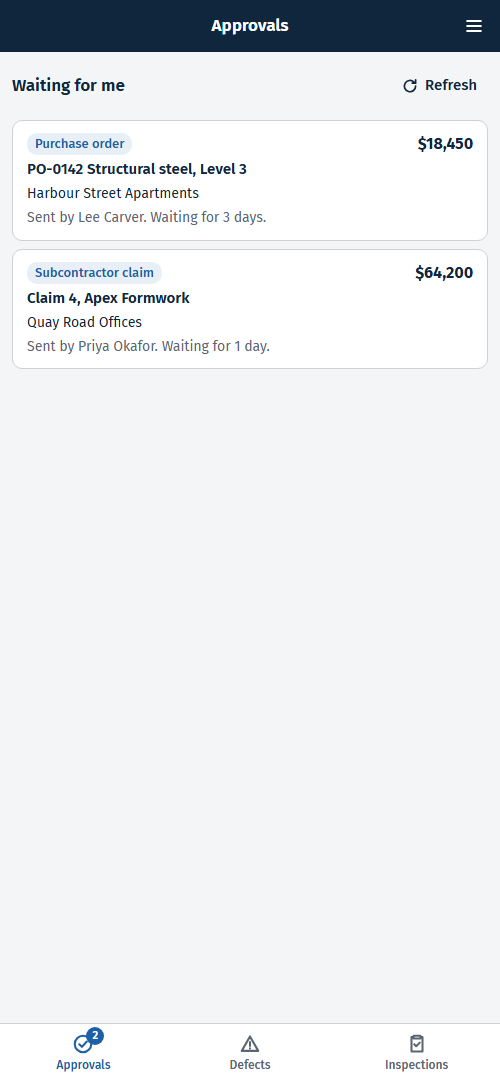
Section titled “What is on it”A dark bar at the top shows where you are, with a back arrow and the menu. Along the bottom is one tab for each of these that you hold:
| Tab | Shown to people who have | What it does |
|---|---|---|
| Approvals | My Approvals | What is waiting for your decision; approve, send back or reject |
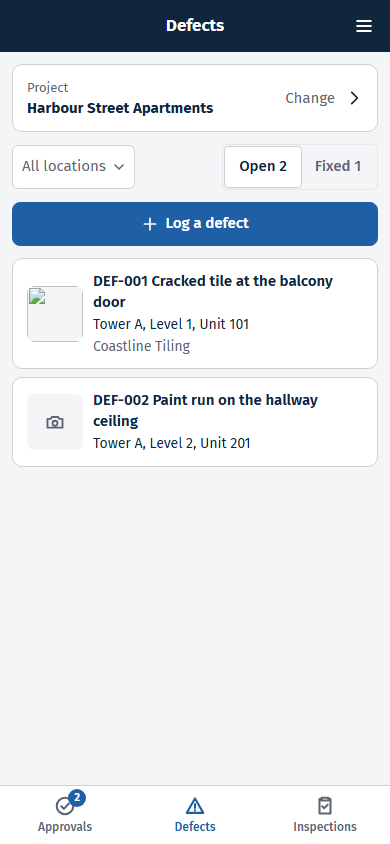
| Defects | Defects | The project’s defects by place; log one with photos; mark fixed or reopen |
| Inspections | Quality | The inspections the plan requires at each place; do one, release hold points, complete |
| SWMS | Safety, with the SWMS register switched on and permission to see it | Which companies are cleared to start, and each accepted SWMS to open. Read only |
The buttons follow the same permissions as the desktop pages. For example, without “Close defects” there is no Mark fixed. The server checks again on every save.
The project
Section titled “The project”Defects, Inspections and SWMS show the project chosen. Tap the project’s name at the top of the tab, or Change, to choose another from the projects you can open. Changing it on the phone changes it on the desktop pages too, and the other way round.
The menu
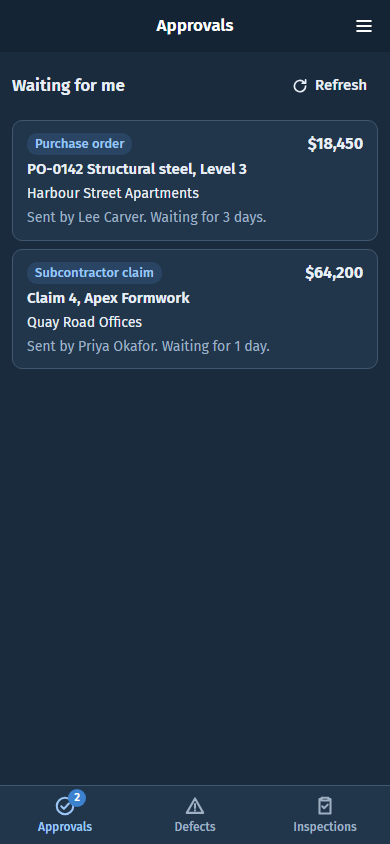
Section titled “The menu”The menu button at the top right shows who you are signed in as, Night mode (the same dark skin as the desktop, and it stays chosen there too), Open the full site and Sign out.
What stays on the desktop
Section titled “What stays on the desktop”Deciding an approval on someone else’s behalf, taking a request back, approval workflows, inspection plans and checklists, and reviewing or uploading SWMS. A request waiting on someone else says to open My Approvals on a computer.