

Get a daywork sheet signed
A daywork sheet is signed by your site manager and by the other side’s representative: the client’s for a client sheet, the subcontractor’s for a subcontractor’s sheet. Sign it on site at the end of the day, while both remember the work.
Before you start
Section titled “Before you start”- Who can do this: “Record daywork sheets”.
- The sheet has at least one line.
-
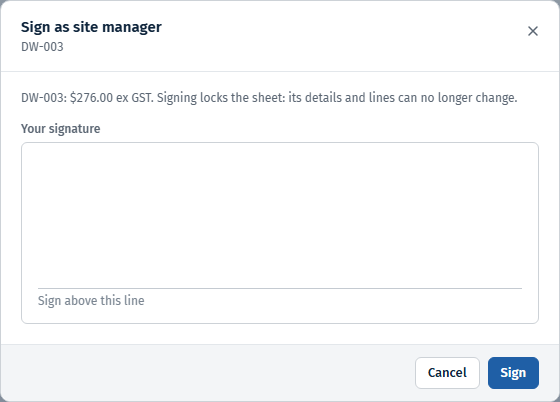
Open the sheet. Under Signatures, choose Sign as site manager.
-
Draw your signature in the box with a finger or the mouse, and choose Sign. The sheet is now locked: its details and lines can no longer change.
-
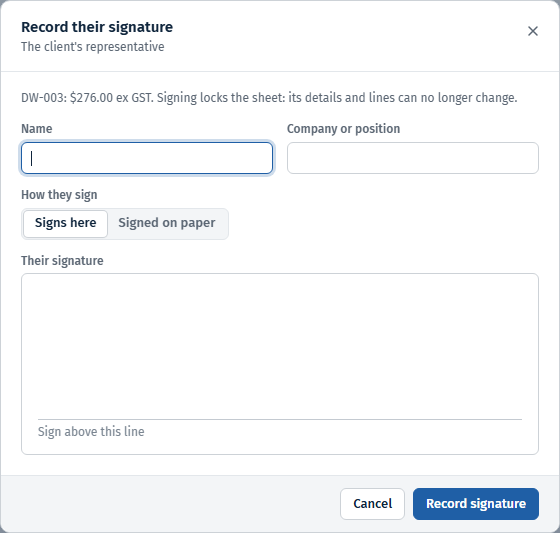
Choose Record their signature. Type their Name and their Company or position.
-
Under How they sign, choose Signs here and have them draw their signature, or choose Signed on paper and add a photo or PDF of the printed sheet with their signature on it.
-
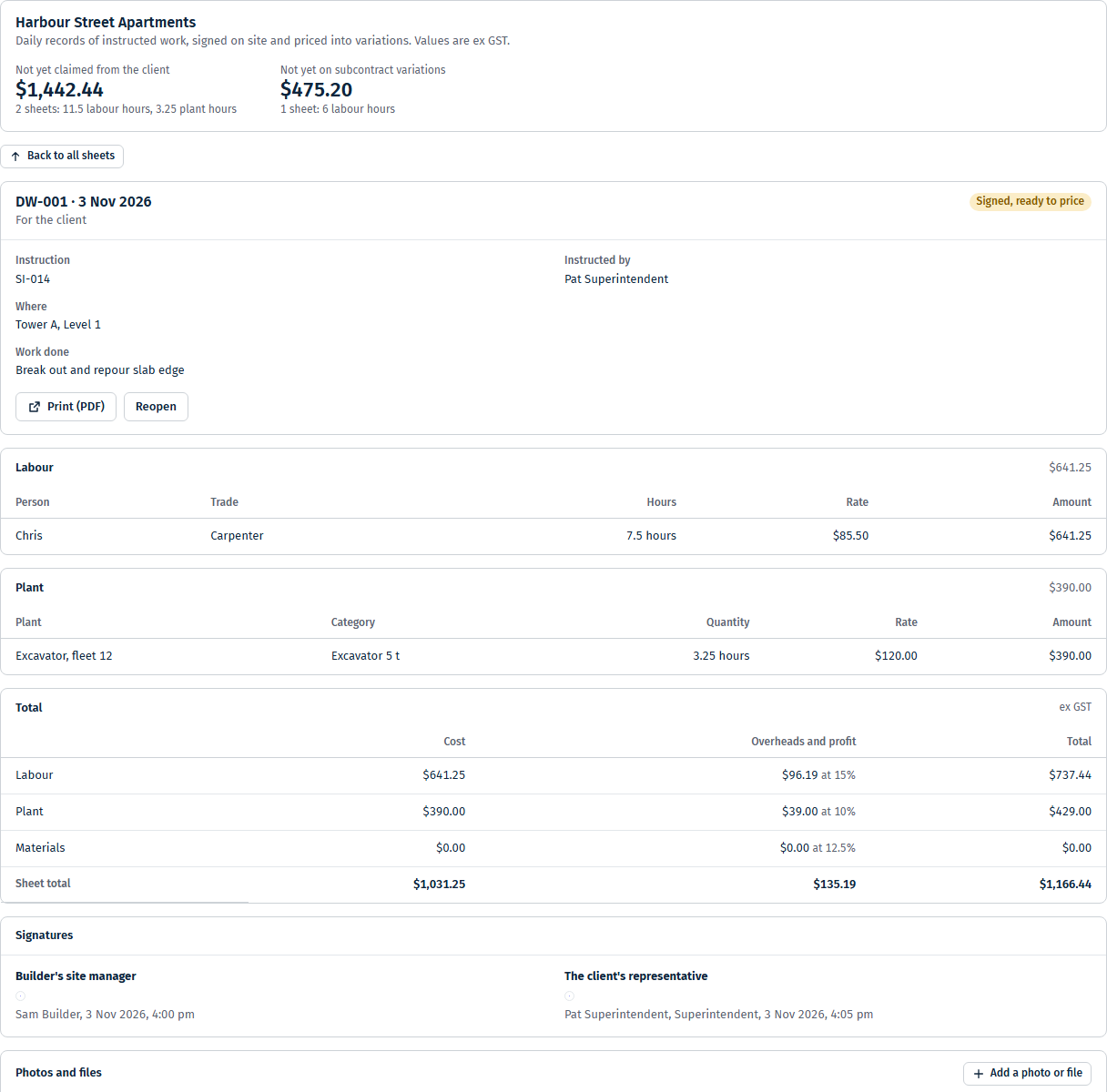
Choose Record signature. With both signatures the sheet is signed, and stays locked.
What happens next
Section titled “What happens next”- If your company has a Daywork sheets approval workflow with a step for this sheet’s value, an Approval box appears with Send for approval. The people at that step are asked in My Approvals. Until it is approved the sheet cannot be priced.
- Otherwise the sheet is ready to price.
Reopen a signed sheet
Section titled “Reopen a signed sheet”A sheet signed by both sides stays locked. If it is wrong and not yet on a live variation, someone with “Reopen a signed daywork sheet” can open it again. Nobody has that permission until an administrator ticks it for them on the Users page.
- Open the sheet and choose Reopen.
- Under Why, say why, and choose Reopen.
Both signatures are removed and any approval request still waiting is taken back. The sheet can be changed, and must be signed again, and approved again where your workflow asks for it, before it can be priced. Its history keeps who signed it and why it was reopened.
Good to know
Section titled “Good to know”- The first signature locks the sheet, whichever side signs first.
- Until both have signed, Clear the signatures removes the signature (and any signed paper copy) and unlocks the sheet. It then needs signing again.
- Once both have signed, the signatures cannot be cleared: the sheet can only be reopened, as above.
- Take it back withdraws a sheet waiting for approval. It asks first; the approvers are no longer asked, and sending it again starts again at the first step.
- Print (PDF) prints the sheet with both signatures, or “signed on paper”.