

Set up the SWMS register
The SWMS tab keeps every subcontractor’s safe work method statements for the project, and shows which companies are cleared to start. It is off until someone switches it on for the company.
Before you start
Section titled “Before you start”- Who can do this: anyone with “SWMS settings”. Nobody has it until an administrator ticks it on the Users page or in a project role; administrators always can.
- The tab shows only to people with “See SWMS”, “Add SWMS”, “Review SWMS” or “SWMS settings” on the project.
-
Open Safety, choose the project on the left, then the SWMS tab. While it is off it says “The SWMS register is switched off for your company.”
-
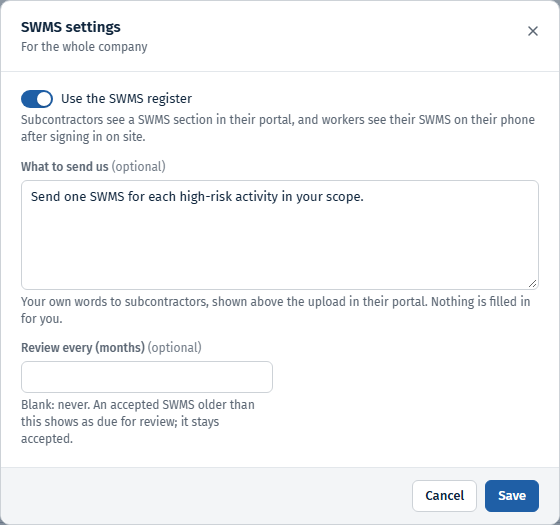
Press SWMS settings.
-
Switch on Use the SWMS register.
-
What to send us (optional): your own words to subcontractors, shown above the upload in their portal.
-
Review every (months) (optional): an accepted SWMS older than this shows as due for review. Leave it blank for never.
-
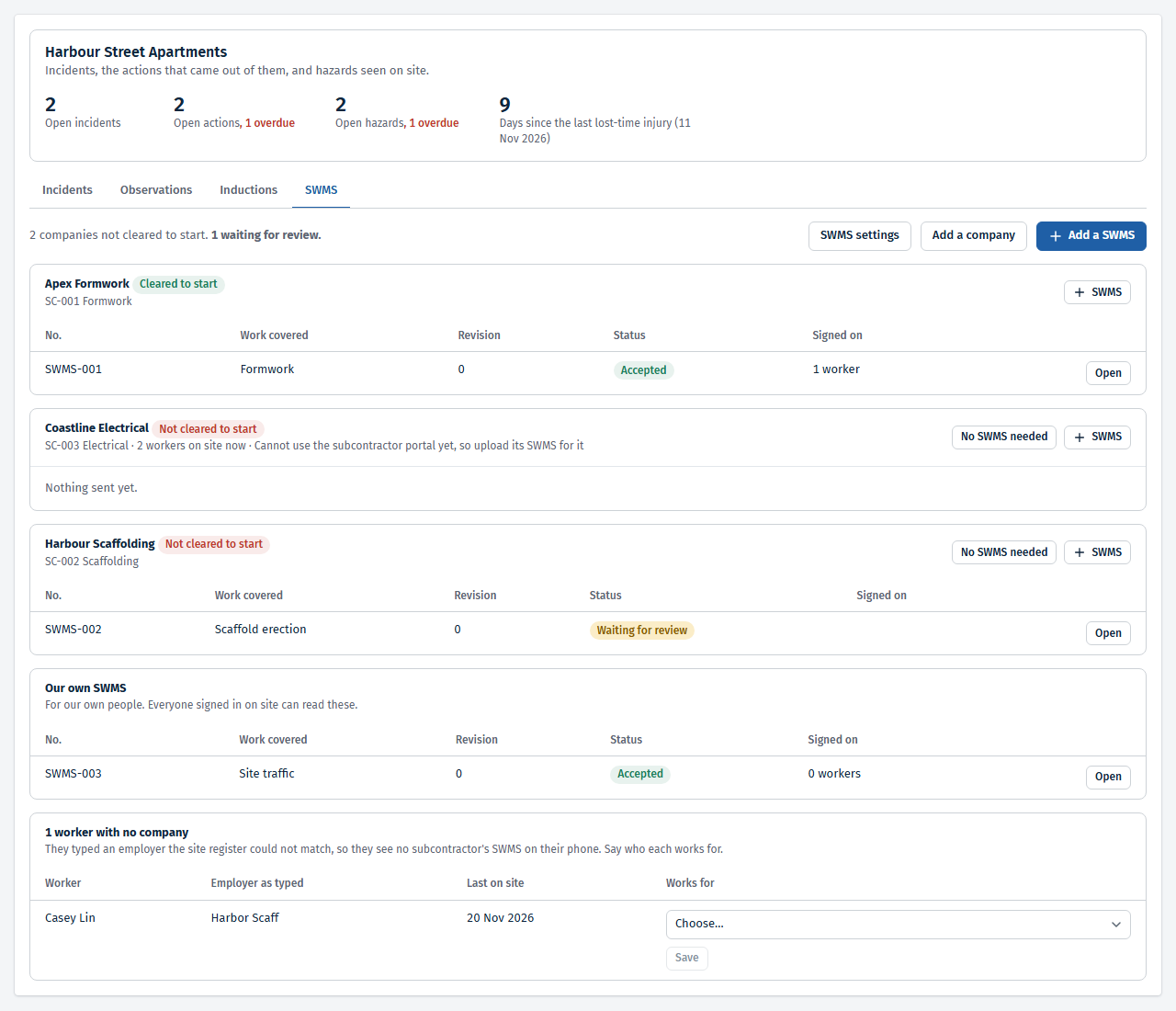
Press Save. The register appears: a card for each subcontractor on the project, each Not cleared to start until it has an accepted SWMS.
What happens next
Section titled “What happens next”- Subcontractors see a SWMS section in their portal and can send their SWMS there.
- Workers who sign in on site with their phone see their own company’s accepted SWMS and yours, and sign on to each.
- Staff see each company’s clearance and its accepted SWMS on the Phone page.
Good to know
Section titled “Good to know”- The settings are for the whole company, not one project.
- A subcontractor is on the register once its subcontract is approved, out for signing, executed or complete.
- Not cleared to start is a warning, never a block. The company’s workers can still sign in on site; the people who see the register get a bell when one does.
- Add a company puts a company working without a subcontract on the register: type two or more letters of its name and choose it. It must be under Suppliers first. Remove takes it off again while it has sent nothing.
- No SWMS needed, with a reason, stops a company showing as not cleared, for example “Supply only, no work on site”. SWMS needed after all undoes it. Both need “Review SWMS”.
- Workers with no company lists workers whose employer the site register could not match. Choose who each works for and press Save; they then see that company’s SWMS on their phone.
- A company that cannot use the subcontractor portal yet says so on its card: upload its SWMS for it.