

Run a report
Choose a report, the period it covers and the projects it covers. The report changes as you choose; there is nothing to save.
Before you start
Section titled “Before you start”- Who can do this: See portfolio reports. To see money, See money in portfolio reports too. Administrators always can.
-
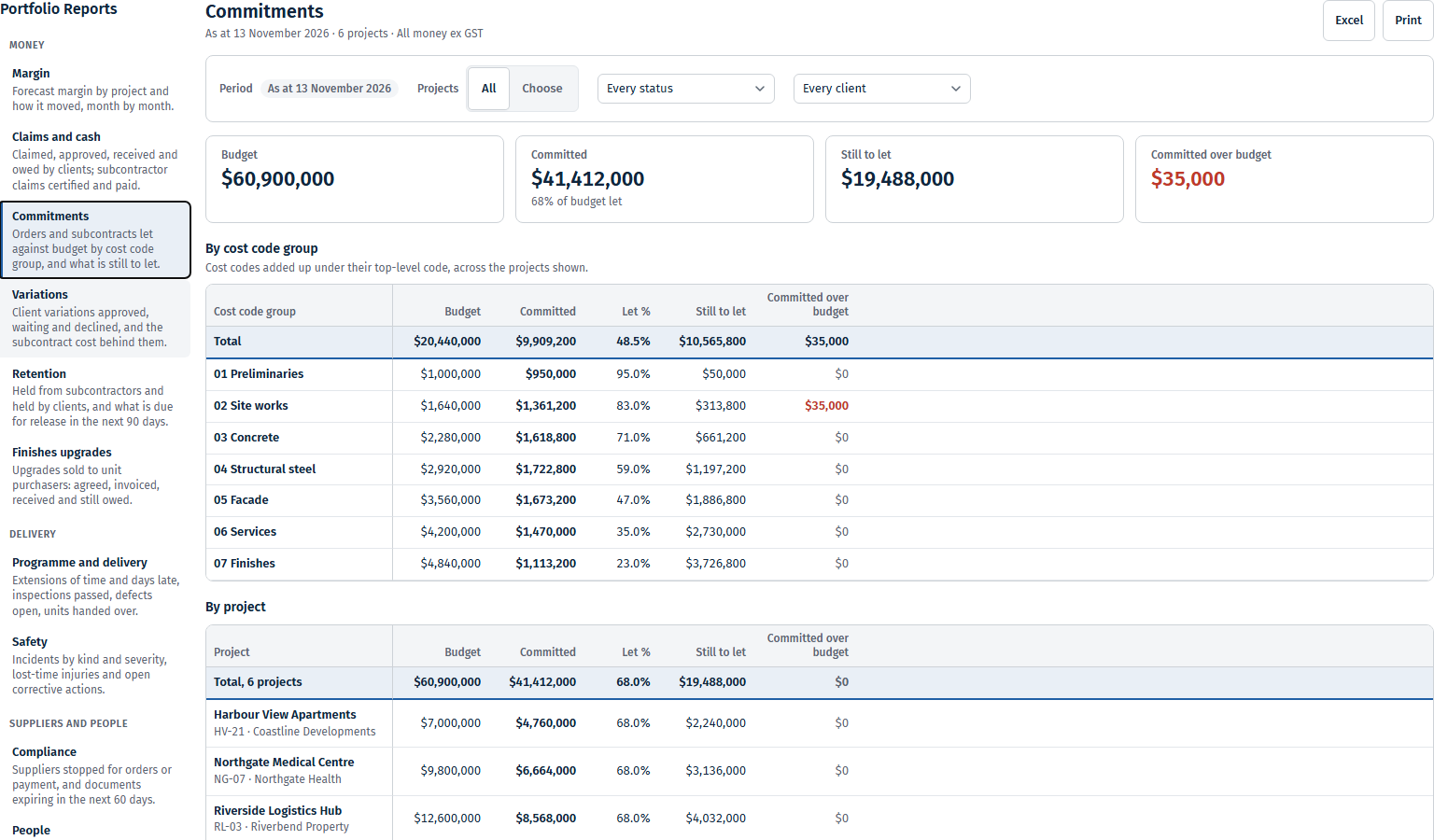
Open Portfolio Reports from the menu on the left. It opens on the first report you may see.
-
Choose the report from the list on the left. On a smaller screen the list is the Report dropdown above it.
-
Choose the Period: This month, Last month, This quarter, This financial year, Last financial year, Last 12 months, or Choose months and type the first and last month. Reports read as at today, or for next month, say so in place of the period.
-
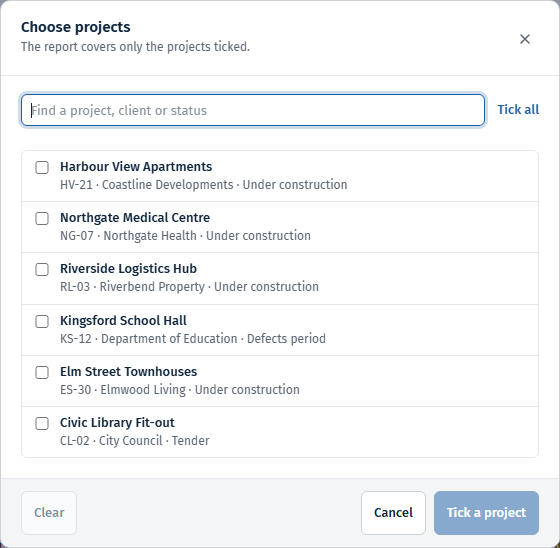
Leave Projects on All, or choose Choose. In the window, find and tick the projects, then choose Show and the number of projects.
-
To narrow it further, choose a project status in Every status or a client in Every client.
-
Read the tiles first, then each table. The total row is at the top of each table, in bold.
-
Click a project’s name to open the module the report reads, on that project.
Good to know
Section titled “Good to know”- The default period is this financial year, from 1 July to the end of this month.
- A figure that cannot be worked out is a dash, never a zero. Hold the pointer over it to see why.
- Margin reads each project’s latest month closed in Cost Forecast by the period’s end. A month older than expected is shown amber.
- Commitments, Retention, Programme and delivery, and Compliance are always as at today. People is always next month.
- Claims owed are aged from the day the claim was approved, because a claim holds no due date.
- Commitments covers projects under way only.