Enter a claim
When a subcontractor’s progress claim arrives, enter it against their subcontract exactly as they claimed it. Assessing it comes next.
Before you start
Section titled “Before you start”- You need the “Enter subcontractor claims” and “See subcontract values” permissions.
- The subcontract is Executed or Complete.
- No earlier claim on it is still being assessed or waiting for approval. Claims are certified one at a time, in order.
-
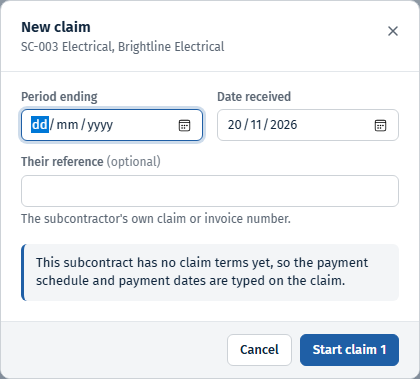
Open Subcontractor Claims and click the subcontract. Choose New claim.
-
Fill in Period ending, Date received and, if they gave one, Their reference: their own claim or invoice number.
-
Choose Start claim; the button names the claim’s number. The claim opens, being assessed, with a line for every schedule line and every approved variation.
-
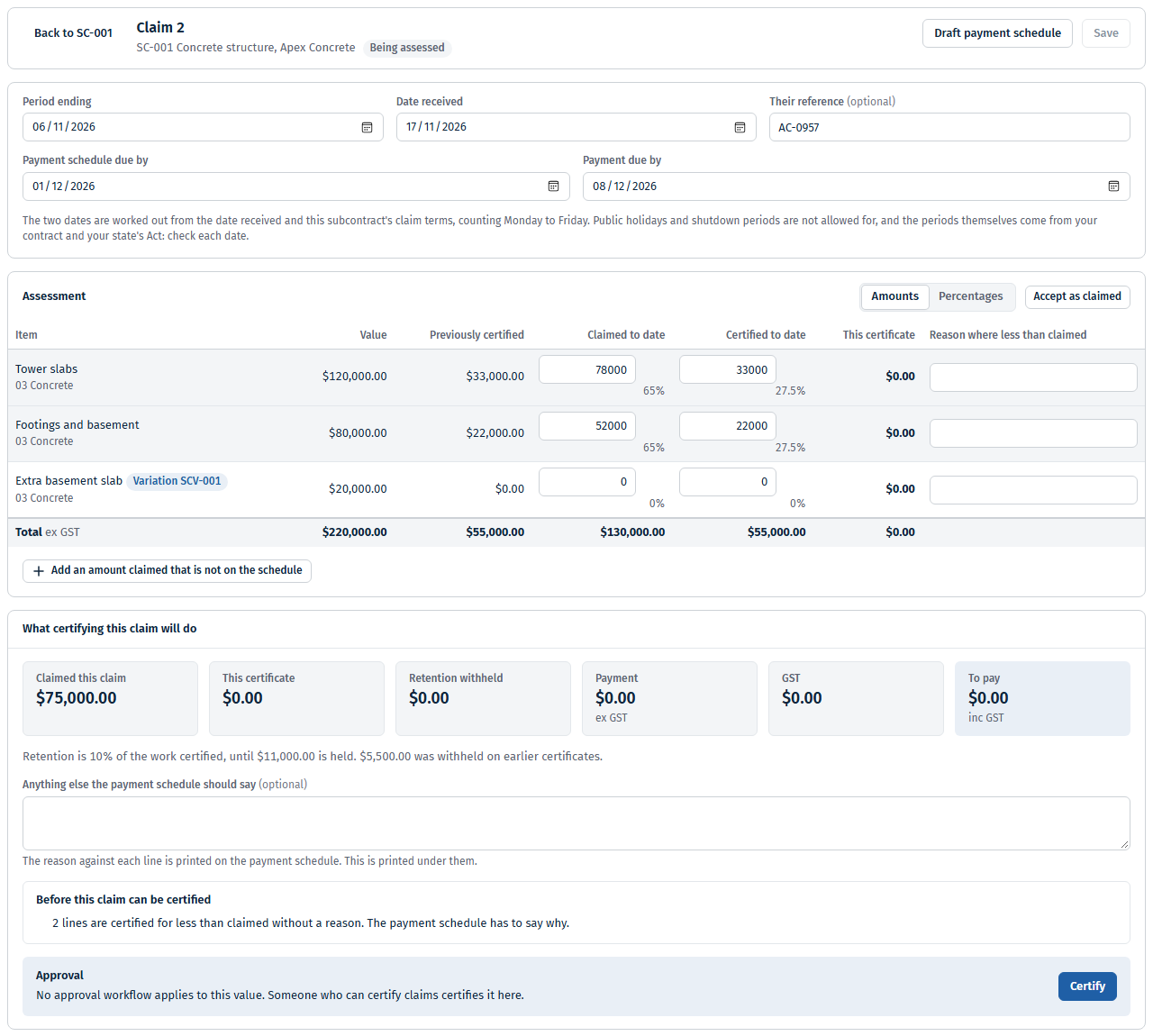
Choose Amounts or Percentages above the lines, then type Claimed to date on each line: what they say is done in total so far, not just this month.
-
If they claimed for something that is not on the schedule, choose Add an amount claimed that is not on the schedule and type what it is for and the amount.
-
Choose Save. The figures under What certifying this claim will do are worked out again.
Good to know
Section titled “Good to know”-
If the period ends after the date received, you are asked to check the dates and the button becomes Start claim … anyway. It does not stop you.
-
Payment schedule due by and Payment due by are worked out from the date received and the claim terms. Check them; both can be changed.
-
An other amount claimed counts in what was claimed, so the total matches theirs, but nothing can be certified against it.
-
While it is being assessed, a claim can be deleted with Delete this claim. The next claim takes its number.
-
A claim sent through the subcontractor portal arrives already entered, marked From the portal.
-
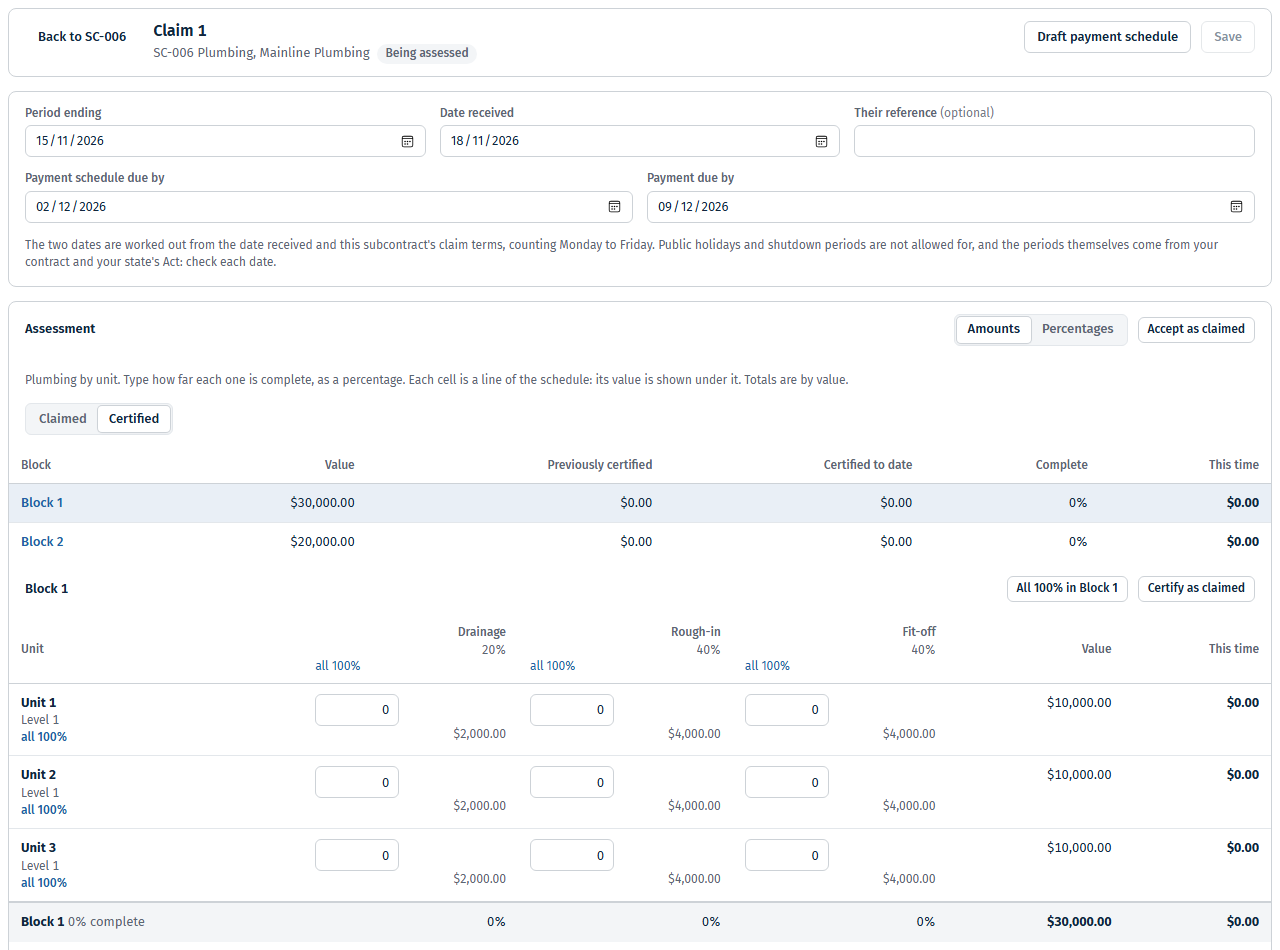
Where the subcontract’s schedule was made as a grid, the claim is shown as the grid: locations down the side, items or stages across.