

Set up your company's subcontract agreement
A subcontract signed on paper is printed as a schedule to the subcontract form your company uses, in your own labels and clause numbers. Set the form up once as an agreement template; every subcontract then takes its defaults, and you add each one’s documents and special conditions.
Before you start
Section titled “Before you start”- To add or change an agreement template, or your company’s details, you must be an administrator of your company. Everyone else can open the templates and read them.
- To change a subcontract’s documents and special conditions, you need the “Create and edit subcontracts” permission, and the subcontract is a Draft.
Set up the template
Section titled “Set up the template”-
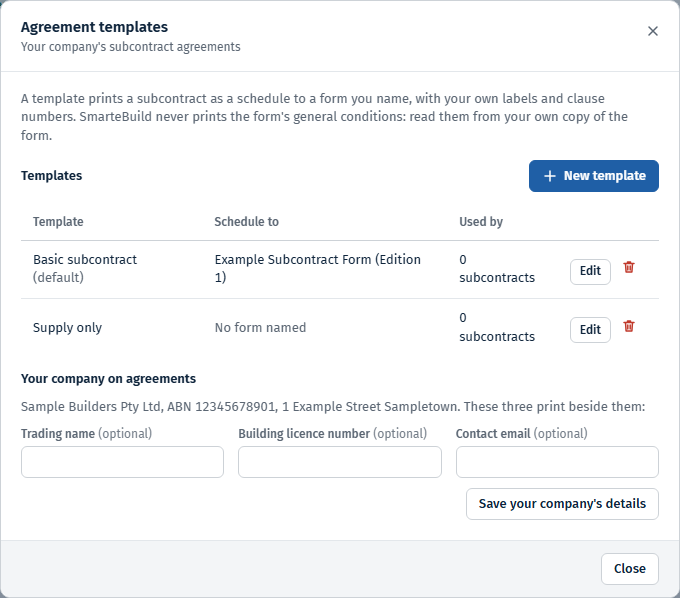
Open any subcontract and its Agreement tab. Choose Agreement templates.
-
Choose New template, or the template to change.
-
Type the Template name, the form’s name under Schedule to, and its Edition if you want it printed.
-
Tick Use for new subcontracts (the default) if new subcontracts should start with this one.
-
Under Defaults for each subcontract, fill in what your form usually has: the margins, Interest on overdue amounts, Liquidated damages, Deposit recovered at, Who insures the works, Retention limit is a percentage of and Claims each.
-
Under The schedule, in your words, type your own clause number and label beside each figure SmarteBuild fills in, untick what your form does not have, and move the lines into your form’s order.
-
Choose Save template.
-
Back in the list, fill in Your company on agreements: Trading name, Building licence number and Contact email. Choose Save your company’s details.
Add a subcontract’s documents and conditions
Section titled “Add a subcontract’s documents and conditions”-
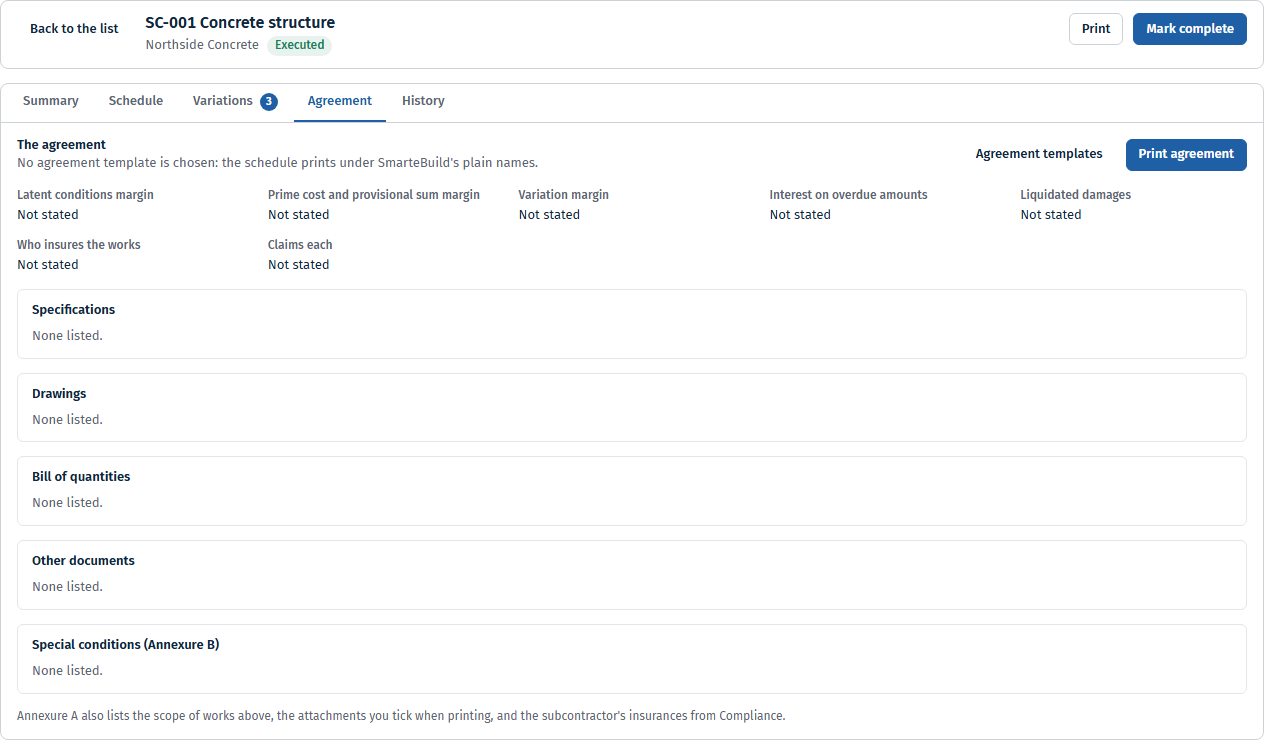
Open the subcontract and its Agreement tab.
-
Choose Edit documents and conditions.
-
Under Specifications, Drawings, Bill of quantities and Other documents, choose Add a line for each document the subcontract is based on, with its reference.
-
Under Special conditions, choose Add a condition, the Clause affected, and the condition in your company’s words.
-
Choose Save. The Agreement tab lists them, as Annexure A and Annexure B will print them.
Good to know
Section titled “Good to know”- SmarteBuild never prints the form’s general conditions. Read them from your own copy of the form.
- Choosing an agreement template in Edit terms fills in its defaults; change any that differ for this trade.
- A deposit set on a subcontract is always printed, even if the template hides the Deposit line.
- Annexure A also lists the scope of works, the attachments you tick when printing, and the subcontractor’s insurances from Compliance.
- Without a template, the schedule prints under SmarteBuild’s plain names.