

File an approved shop drawing as a drawing
Once a shop drawing is approved, the site should build from it. Filing it as a drawing puts a copy in the project’s Documents with its drawing number and revision, so it appears in the drawing register and supersedes the revision before it.
Before you start
Section titled “Before you start”- Who can do this: “Add and edit submittals” on the project, and “Upload and edit documents” in Documents. Administrators always can.
- The submittal is a Shop drawing, its current revision is Approved or Approved as noted, and that revision has at least one file.
-
Open Submittals and click the submittal. A line says the approved shop drawing can go into Documents as a drawing.
-
Choose File as a drawing.
-
If the revision has more than one file, choose the File: one of the files sent, or one returned by the reviewer.
-
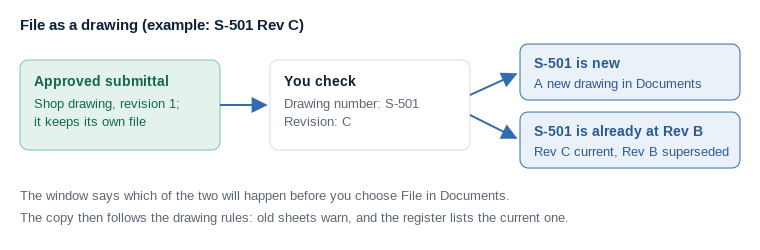
Check the Drawing number and Revision. They are read from the file name when it has them; type them as they are on the drawing, for example S-501 and C.
-
Read the line at the bottom. It says what will happen in Documents, for example “S-501 Rev C is a new drawing on this project”, or “S-501 is already here at Rev B. This becomes Rev C and Rev B is marked superseded”.
-
Choose File in Documents.
What happens next
Section titled “What happens next”- The drawing is in Documents. A new revision goes into the folder of the drawing it replaces; a new drawing goes into the shared Plans folder.
- The submittal lists it under In Documents, with the revision it came from, who filed it and when. It opens in the document viewer, and is marked Superseded once a later revision replaces it.
Good to know
Section titled “Good to know”- Approving never files anything by itself. It is offered; you choose.
- A copy goes into Documents. The submittal keeps its own file.
- Each approved revision is filed once.
- Number up to 50 characters, revision up to 20.