

Mark up a drawing
Put comments, clouds, arrows, freehand lines and words on a drawing, so the site team and the office see the same notes in the same place. Everyone who can open the drawing sees every markup on it.
Before you start
Section titled “Before you start”- You need the permission Mark up drawings. Nobody gets it automatically with Documents: an administrator ticks it for each person. Administrators always can.
- Removing someone else’s markup needs Remove anyone’s markups. You can always remove your own.
- Markups work on PDF drawings and on pictures (jpg, png). Not on CAD files, Word or Excel.
-
Open Documents, find the drawing and open it.
-
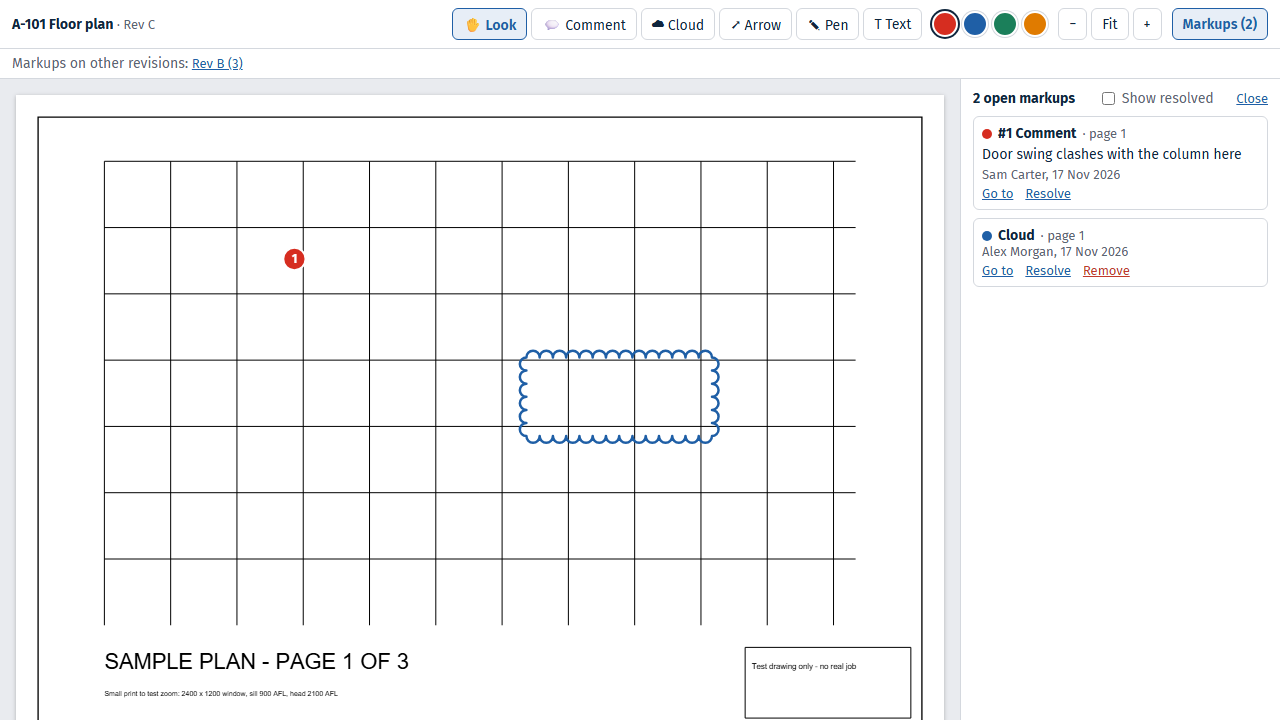
Choose Mark up. The drawing opens in the markup viewer, with its number, title and revision across the top.
-
Pick a tool:
- Comment: click where the comment belongs, type it, and choose Add comment. It shows as a numbered pin.
- Cloud: drag a box round the area.
- Arrow: drag from the start to the point.
- Pen: draw freehand.
- Text: click where the words go, type them, and choose Add text.
-
Pick a colour before you draw: red, blue, green or orange.
-
Use −, Fit and + to zoom, and Look to move round the drawing and pick a markup.
-
Choose Markups to show the list of every markup on this revision. From the list, Go to takes you to one, Resolve marks it done (and Reopen brings it back), Change words edits your own comment or text, and Remove takes it off.
What happens next
Section titled “What happens next”- Markups are saved as you add them. Everyone who opens the drawing sees them.
- Resolved markups are hidden from the drawing unless you tick the switch to show them in the list.
- Every add, resolve and remove is kept in the drawing’s activity, with who did it.
Good to know
Section titled “Good to know”- Markups belong to the revision they were drawn on. A new revision starts clean; the viewer tells you how many markups the earlier revisions have and opens them.
- A superseded revision is read-only: its markups show, but nothing can be added, resolved or removed. The same goes for a drawing received from a consultant and not yet accepted. The viewer says why.
- Markups are not shown outside: share links, transmittals, RFI links and the client portal show the drawing without them.
- Markups stay in place at any zoom and on any screen size.