

Do an inspection on your phone
Do the inspections the project’s inspection plan asks for, standing at the place, phone in hand. Each answer is saved as you give it, so the office sees it straight away in Quality.
Before you start
Section titled “Before you start”- Who can do this: “Fill in checklists” to start and answer. Releasing a hold point, signing and completing need “Sign off a checklist”.
- The project has an inspection plan in Quality.
-
Open On site and the Inspections tab. Choose the place with the location filter, if you want.
-
To do lists each inspection the plan requires there and inside it, with its trade, its place and where it stands; the ones in progress come first. Done lists those finished.
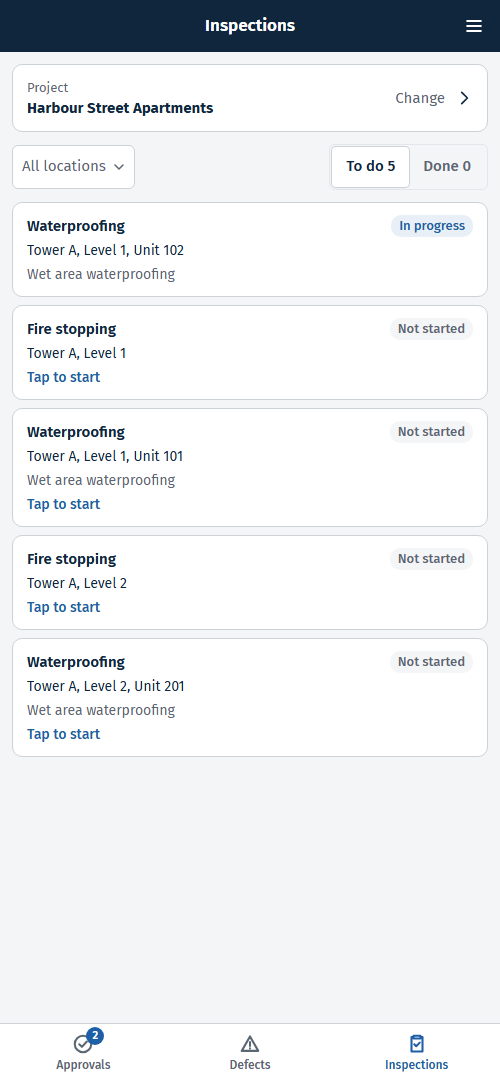
-
Tap an inspection. One not started yet starts and opens; one in progress opens where it was.
-
Answer each item: Pass, Fail or N/A, Yes or No, or type the text or number asked for.
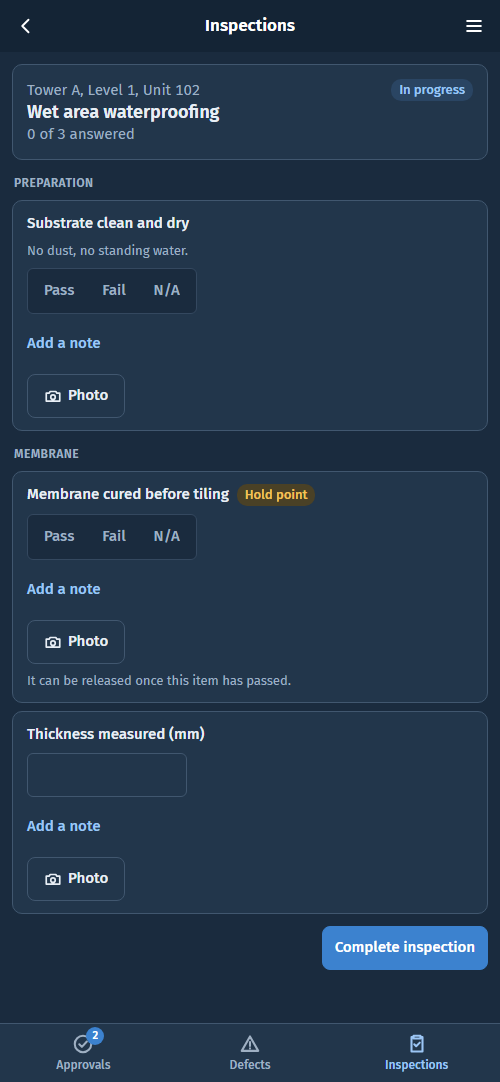
-
Where needed, tap Add a note or Photo.
-
On a failed item, tap Raise a defect. It is logged on the Defects list at the inspection’s place.
-
On a hold point, once its item has passed, tap Release the hold point and give the name and company of the person releasing it. A witness point records who witnessed it the same way.
-
If the checklist must be signed, tap Sign and give your name.
-
Tap Complete inspection. It says “Completed: passed.” or, with a failed item, that it failed and is inspected again once put right.
Good to know
Section titled “Good to know”- If it is not finished, Complete inspection says why, for example how many items are not answered, or that a hold point has to be released first.
- Before its item has passed, a hold point shows only a line saying when it can be released.
- Signing on the phone takes your typed name.
- The same inspection can be carried on at the desk in Quality.