

Take plant off site or off hire
When a machine leaves the project, take it off site so its cost stops. When hired plant goes back to the hire company, off-hire it so the hire stops being counted.
Before you start
Section titled “Before you start”- Taking off site needs “Put plant on a project and take it off”.
- Off-hiring needs “Add and change plant and equipment”.
Take it off site
Section titled “Take it off site”-
Choose the project on the left, open Plant Register and the On this project tab.
-
On the item’s row under On site now, choose Take off site.
-
Choose the Last day on site and choose Take off site.
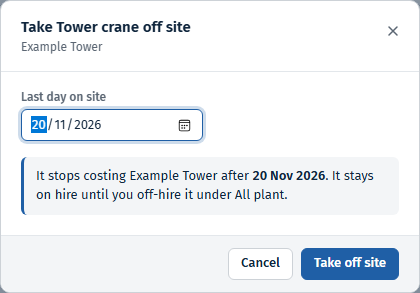
It moves to Earlier and still to come and its cost stops growing. On All plant it shows as idle, or Idle, on hire if it is hired.
Off-hire hired plant
Section titled “Off-hire hired plant”-
On the All plant tab, on the item’s row, choose Off hire.
-
Choose the Last day of hire. The line underneath says what will happen; if the item is on a project, it comes off that project the same day.
-
Choose Off hire.
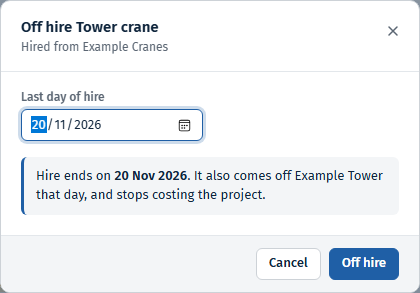
Until its last day of hire is over it stays in the list, marked Off hire with that day; after that it leaves the working list. The link under the list, Show 1 item off-hired or no longer in use (or however many there are), brings it back.
Good to know
Section titled “Good to know”- Off-hired by mistake: show it again with the link under the list, choose Change off hire on its row, then Put back on hire.
- Hire counts every day on hire, whether or not the item was on a project, because the hire company charges for idle days too.