

Move and resize cards
Put the cards you look at first at the top, and give the busy ones more room, by moving them on the page itself.
Before you start
Section titled “Before you start”- Anyone who can open the Dashboard can do this. Your layout is saved to your own account.
-
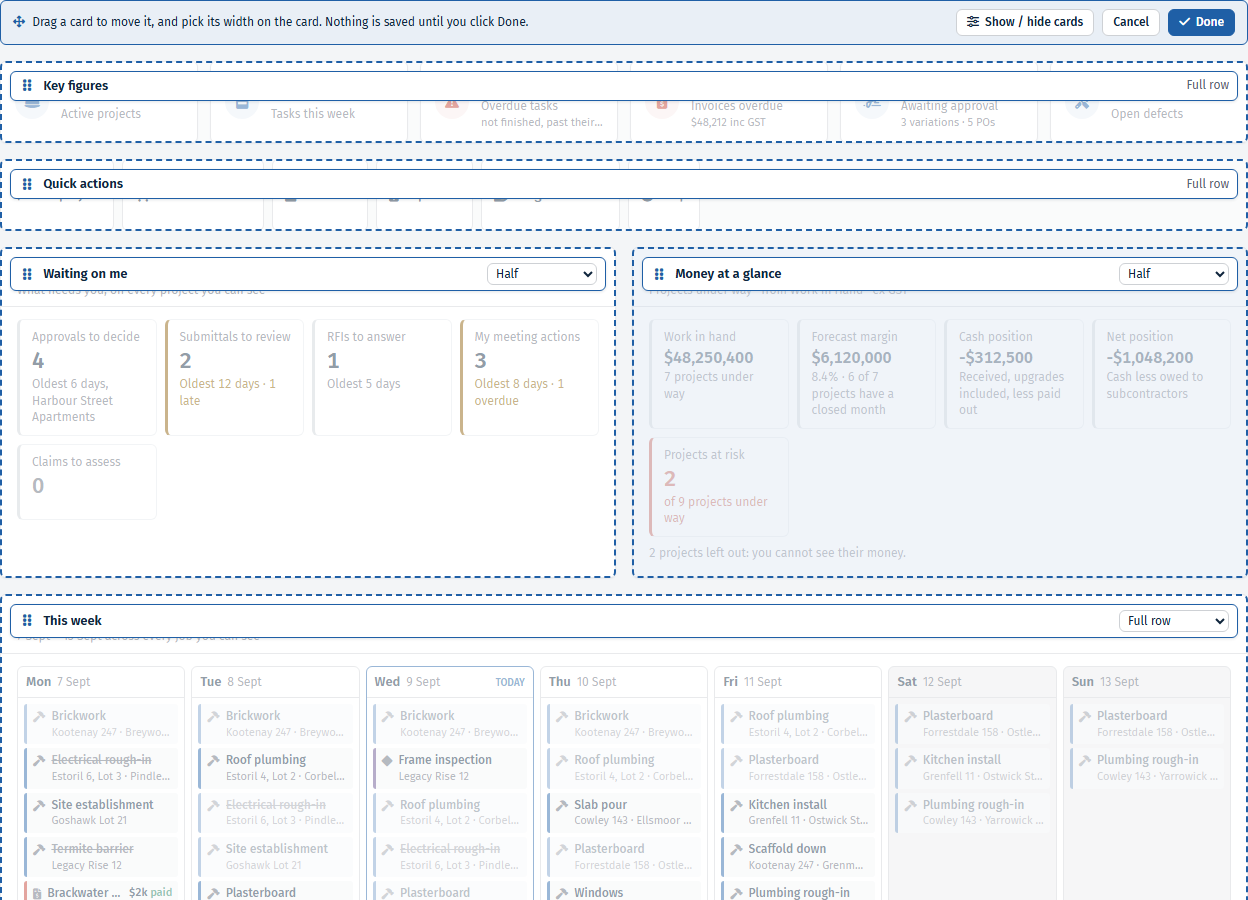
Open Dashboard and press Edit layout at the top right. A line says “Drag a card to move it, and pick its width on the card. Nothing is saved until you click Done.” Each card shows its name and a width list across its top.
-
To move a card, press and hold on it, drag it over another card until the drop line shows where it will go, and let go.
-
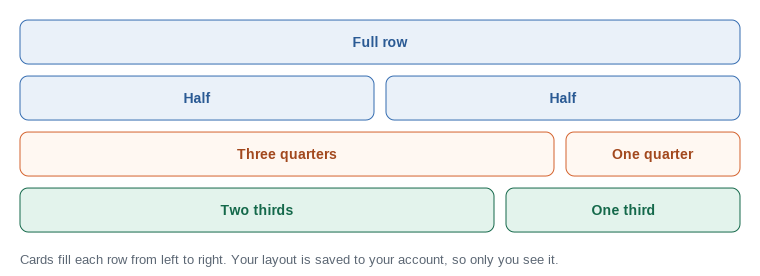
To change a card’s width, choose it in the list on the card: Full row down to One quarter.
-
To switch cards on or off while you are here, press Show / hide cards. It opens the Customise panel.
-
Press Done. Your layout is saved and the page goes back to normal.
Good to know
Section titled “Good to know”- Without a mouse: press Tab until a card is selected, then use the arrow keys to move it one place earlier or later.
- Cancel or Escape leaves Edit layout without saving anything.
- If the layout cannot be saved, a red line says why and the page stays in Edit layout so you can try again.
- A card you have switched off keeps its place next to the card it followed, so it comes back there when you switch it on again.