

Work out prices for each unit type
A palette that changes the flooring costs more in a three-bedroom than in a one-bedroom, because there is more floor. Instead of typing one price, let the price be worked out for each unit type from the cost of what it changes, with your markup and GST, rounded up.
Before you start
Section titled “Before you start”- You need “Set up the finishes catalogue” and “See cost and margin”. Without “See cost and margin” the forms offer a fixed price only, and a worked-out item says so.
- The options have their cost rates, and the unit types have their sheets. The quantities on the sheets drive the price.
-
Open Finishes Schedule, choose Set up, then Palettes or Upgrades (or Items and options for an option picked on its own).
-
Open the palette, upgrade or option with its pencil, or add a new one.
-
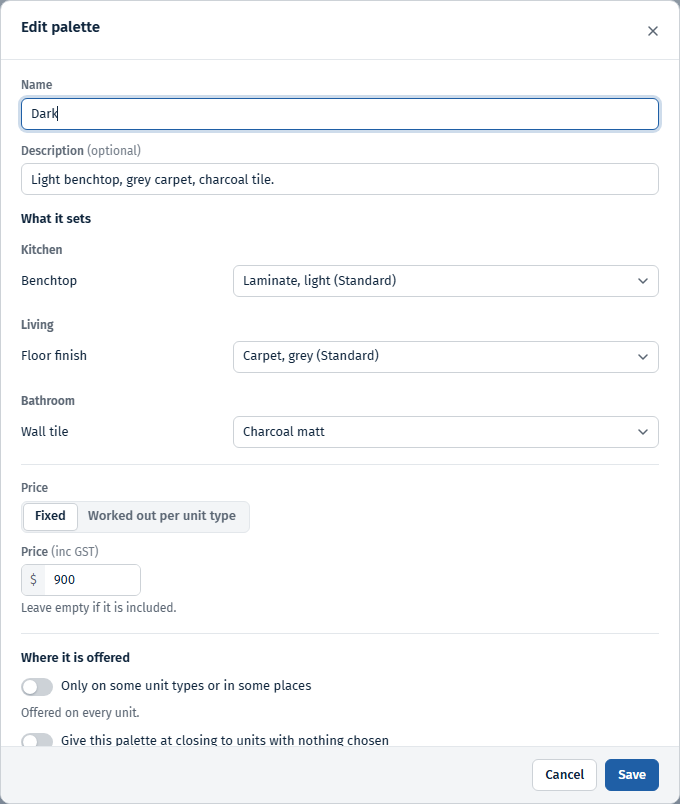
Under Price, choose Worked out per unit type.
-
Type a Markup, or leave it empty to use the project’s.
-
Choose what to Round up to: $1, $10, $100 or $1,000.
-
Read the table: for each unit type with units, the Extra cost ex GST, the Price inc GST it will get, and what it costs Now. The form also says how many units approved by their client would show the new price.
-
Save the palette, upgrade or option. The prices are written for each unit type.
Recalculate after costs change
Section titled “Recalculate after costs change”A change to a cost rate, an estimate line or a sheet does not move a worked-out price by itself.
-
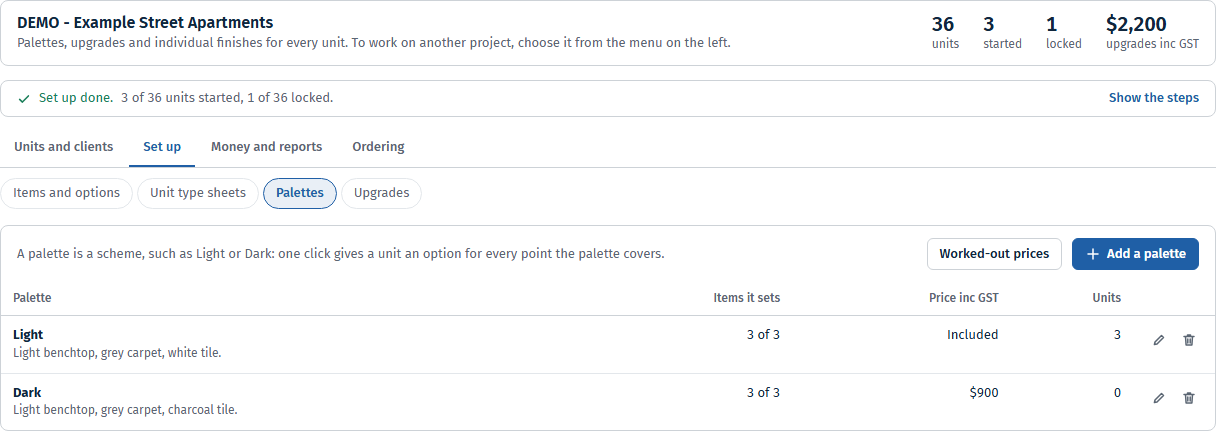
On the Palettes or Upgrades screen, choose Worked-out prices.
-
Change the Project markup or its rounding if needed.
-
The list shows every worked-out price that would change, and what it becomes.
-
Choose Recalculate 4 prices (or Save and recalculate if you changed the project’s markup or rounding).
How the price is worked out
Section titled “How the price is worked out”For each unit type: for every item the palette, upgrade or option sets that is on the type’s sheet, the sheet quantity times the difference between the option’s cost rate and the Standard’s. Then the markup is added, then GST at the project’s rate, then it is rounded up.
For example, a flooring palette that costs $35 more per m², with 25% markup, rounded up to $100: a type with 60 m² is $2,100 extra cost, $2,625 with markup, $2,887.50 with GST, so $2,900.
Good to know
Section titled “Good to know”- A locked unit keeps the price it was locked with. A unit approved by its client but not locked shows the new price.
- Cheaper than Standard, or no difference, is included: the price is $0, never a credit.
- Lists show a worked-out item as its range, such as “$2,100 to $2,900, worked out per unit type”.
- Switching back to Fixed takes the worked-out prices away, and needs “See cost and margin” too.
- The Standard option of an item cannot be worked out: it has no extra price.
- Recalculate is refused if the prices changed again after you opened the list. Open it again and check.