

Add plant to the register
Add each machine the company owns or hires, once, so it can be put on projects and its cost counted. For hired plant, add it when it goes on hire.
Before you start
Section titled “Before you start”- Who can do this: “Add and change plant and equipment”. To type the rate you also need “See hire rates and plant cost”.
- For hired plant, the hire company is in Suppliers.
-
Open Plant Register on the All plant tab and choose Add plant.
-
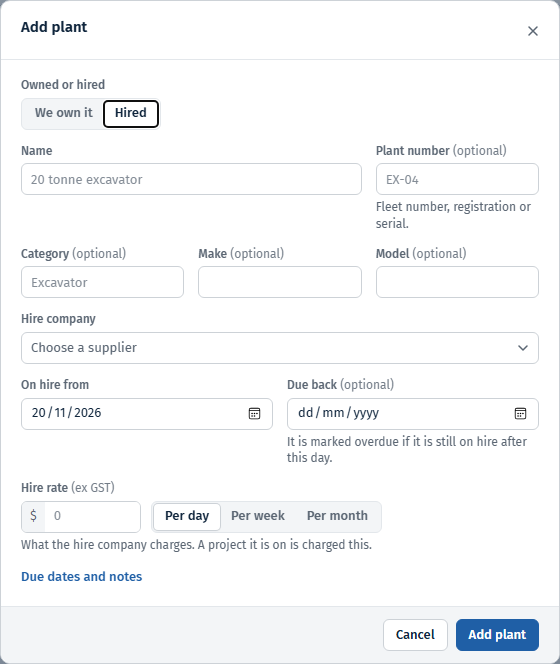
Choose We own it or Hired.
-
Type the Name, for example 20 tonne excavator. Plant number (a fleet number, registration or serial), Category, Make and Model are optional.
-
For hired plant: choose the Hire company (type to search), the On hire from day and, optionally, the Due back day. Once a hire company is chosen you can choose the Purchase order it was hired on.
-
Type the Hire rate (what the hire company charges) or the Charge rate (what a project is charged for owned plant), ex GST, and choose whether it is per day, week or month.
-
To add service, inspection or registration dates, choose Due dates and notes and fill in Service due, Inspection due and Registration due.
-
Choose Add plant. A green line says it was added, and it appears in the list.
Good to know
Section titled “Good to know”- An item is marked overdue once a due date has passed, and due soon within 14 days of it.
- Hired plant still on hire after its Due back day is marked Off-hire overdue.
- To change an item later, click the pencil on its row.
- An item that is sold, scrapped or written off: edit it, open Due dates and notes and switch on No longer in use. It leaves the working list and keeps its history.
- Delete is offered only for an item that has never been on a project.