

Set up the schedule by block, level or unit
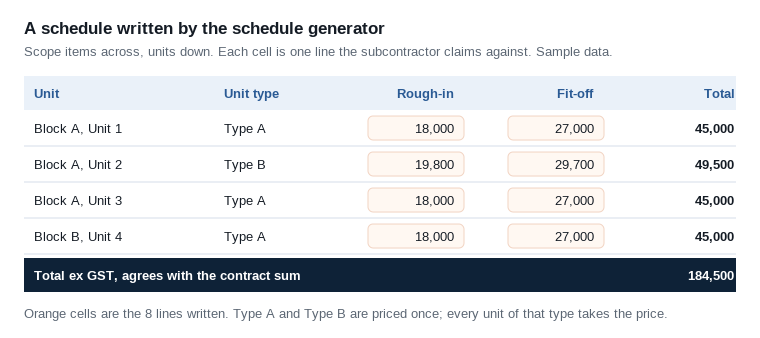
Many trades claim unit by unit, or level by level, against the same stages: a plumber’s Underground, Rough-in and Fit-off on every unit, or one carpet price per unit type. The schedule generator writes that schedule for you as a grid, places down one side and scope items along the other, so each cell is a line the subcontractor claims against.
Before you start
Section titled “Before you start”- You need the “Create and edit subcontracts” and “See subcontract values” permissions.
- The subcontract is a Draft.
- The project’s blocks, levels and units are set up in Buildings & Units. To price by unit type, the units have their unit types.
-
Open the subcontract and its Schedule tab. Choose Schedule generator.
-
Under Start from, leave Set it up here, or pick one of your company’s saved templates to copy its scope items and choices in. This choice only shows when your company has saved templates.
-
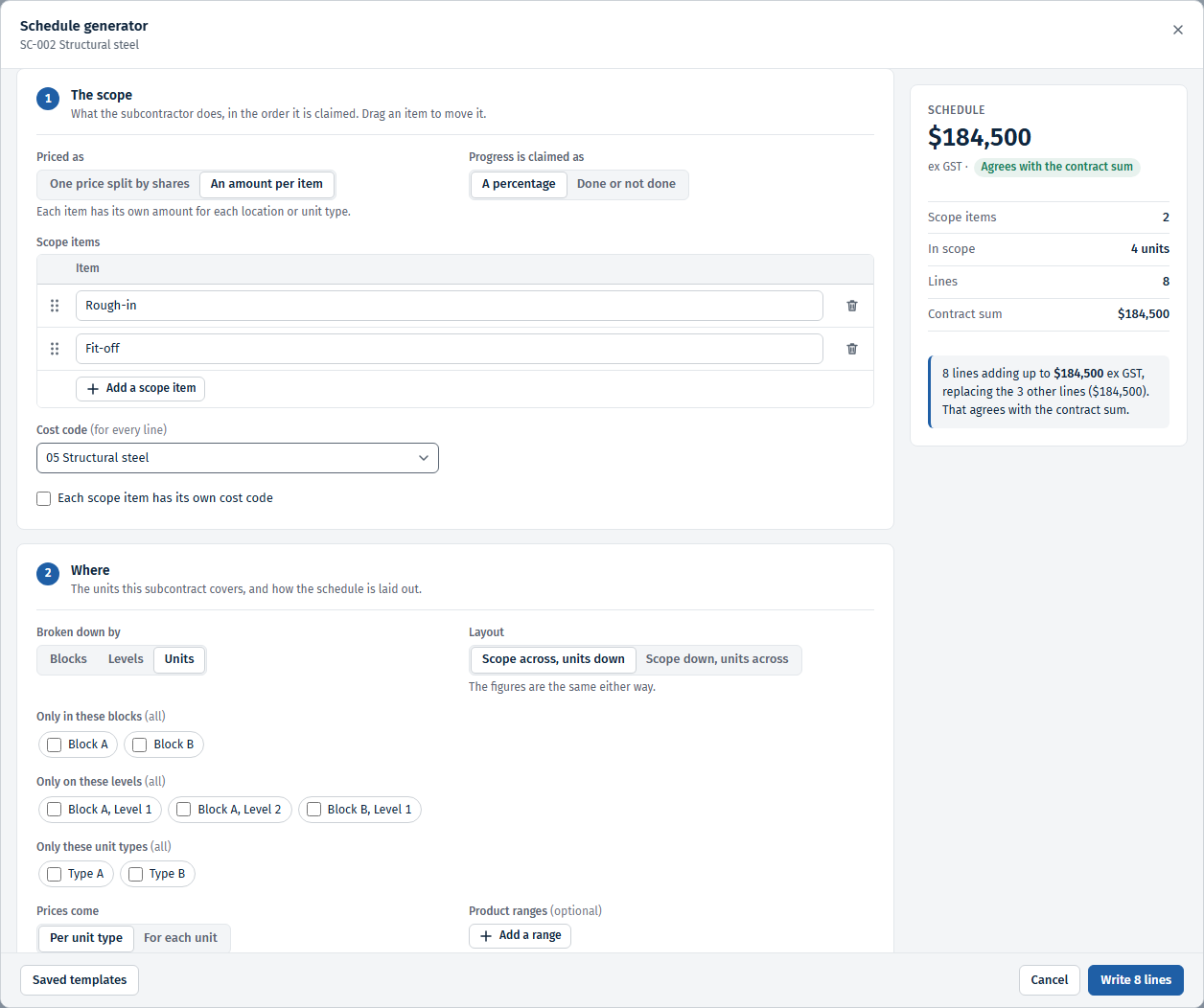
Under 1 The scope, type each Item in the order it is claimed, such as Underground, Rough-in, Fit-off. Add a scope item adds another; drag an item by its grip to move it.
-
Under Priced as, choose One price split by shares (each place has one price and each item takes its Share, adding up to 100%) or An amount per item.
-
Under Progress is claimed as, choose A percentage or Done or not done.
-
Choose the Cost code. If the work is on several cost codes, tick Each scope item has its own cost code and choose one beside each item.
-
Under 2 Where, choose Broken down by: Blocks, Levels or Units. Use the filters, such as Only on these levels or Only these unit types, to show only the places this trade covers.
-
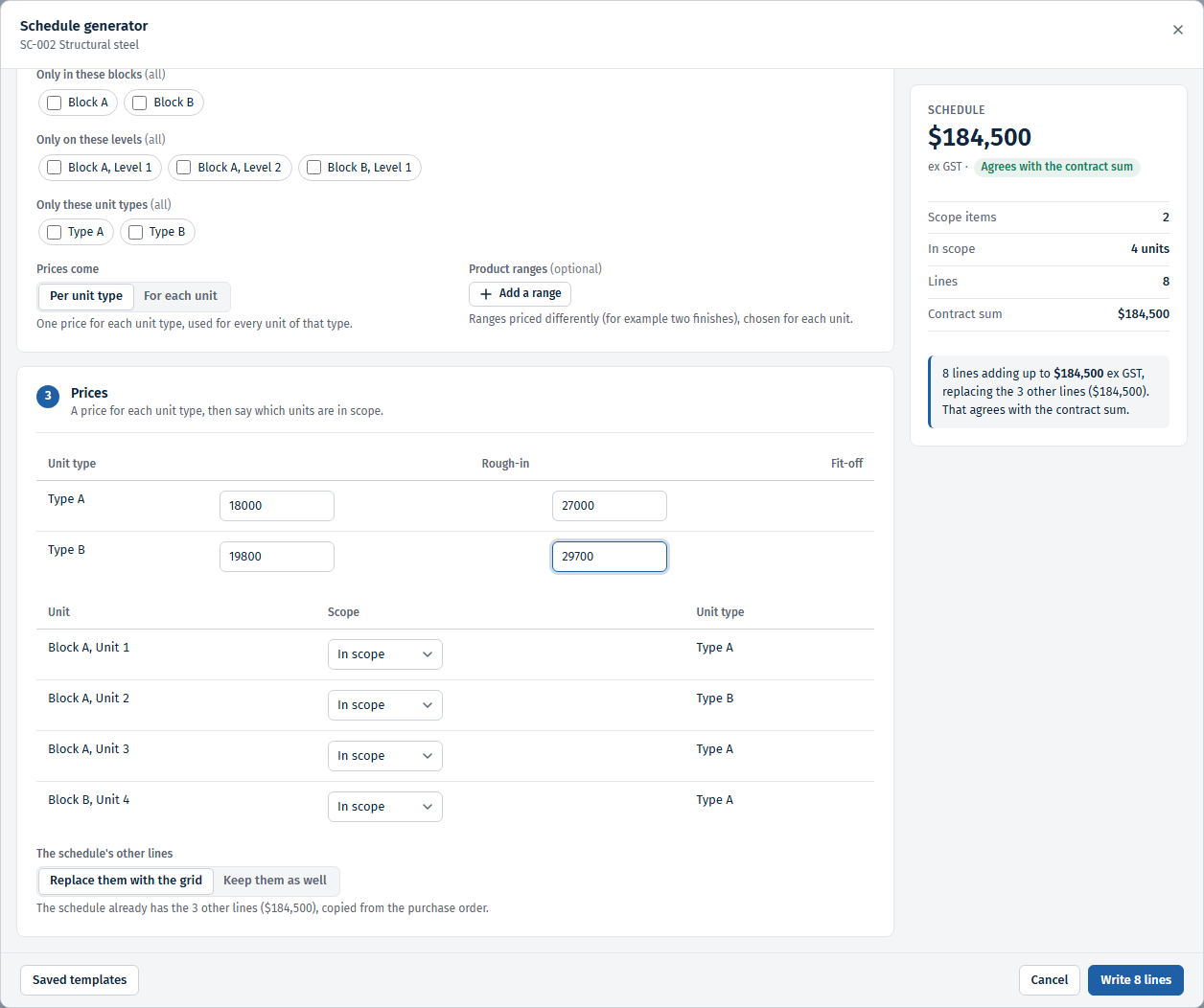
Under 3 Prices, choose whether Prices come Per unit type or For each unit, and type the prices. Add Product ranges if two finishes are priced differently, and choose the range for each unit.
-
For each place, choose In scope, Out of scope or Not on this subcontract.
-
If the schedule already has lines, such as the ones copied from the purchase order, choose Replace them with the grid or Keep them as well.
-
Read the summary beside the steps. It shows the schedule’s total and whether it Agrees with the contract sum, or by how much it is over or under.
-
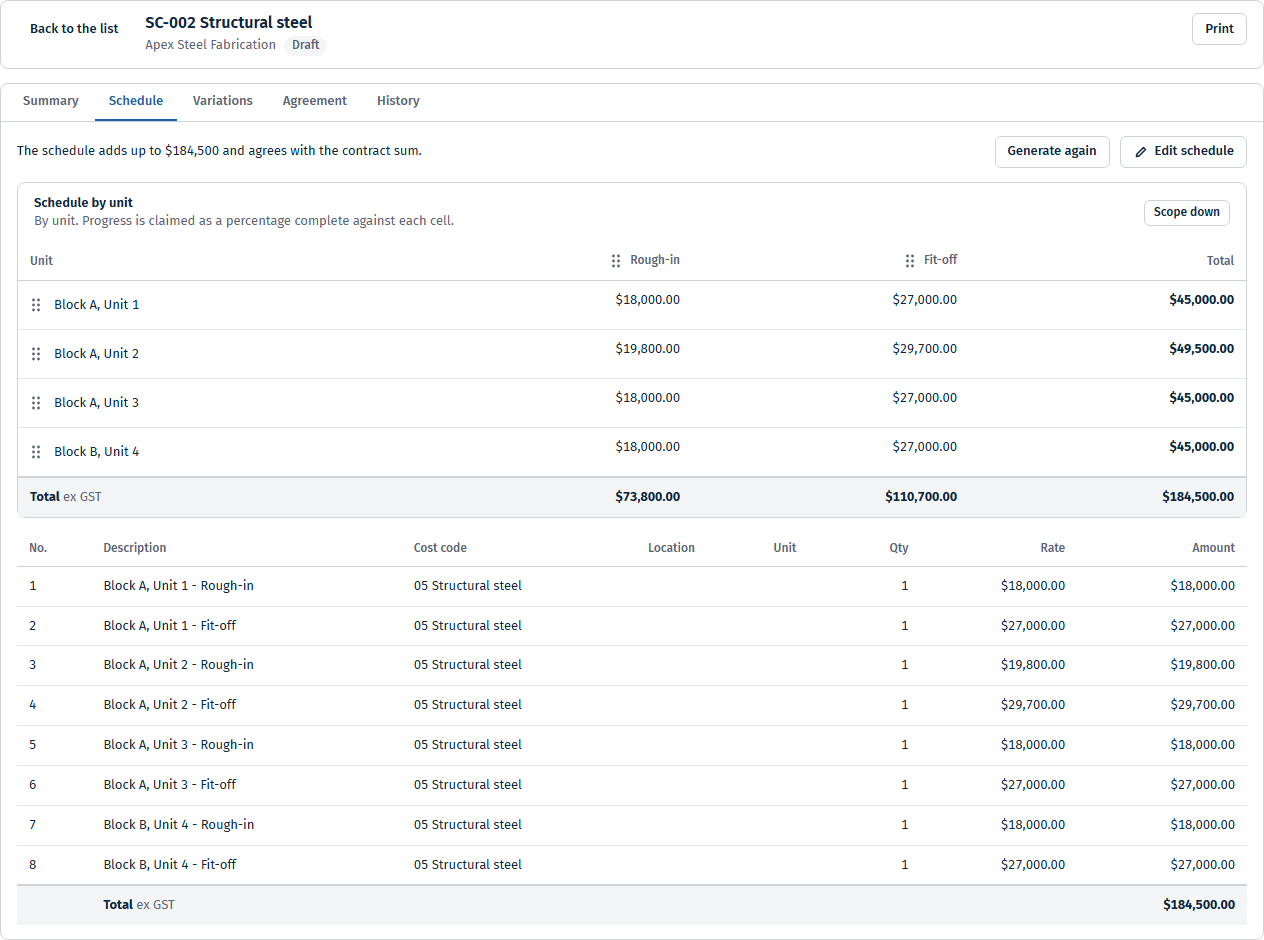
Choose Write 45 lines (the button counts the lines). The Schedule tab now shows the grid, with its total for each place and each item.
What happens next
Section titled “What happens next”- The subcontractor’s claims, and your assessment of them in Subcontractor Claims, are made in the same grid, cell by cell.
- Generate again on the Schedule tab opens the generator with the grid as written, its prices included, so you change only what is different.
- Scope across or Scope down swaps the grid’s layout. The figures are the same either way.
Good to know
Section titled “Good to know”- The schedule must still add up to the contract sum before the subcontract can be sent for approval. Change the prices, or change the order in Orders. The generator never changes the order.
- The generator warns when the cost code you chose is not the one the purchase order uses, because claims put their cost on the schedule’s cost codes.
- An out-of-scope place stays on the grid, greyed, with nothing to claim.
- Until the subcontract is complete, the scope items and the places in the grid can be dragged into a new order by their grips, with a mouse, a finger or the arrow keys. The new order is saved at once.
- Saved templates lists your company’s schedule templates. Only an administrator of your company can add or change one. A subcontract keeps its own copy, so changing a template never changes a schedule already written.
- Once the subcontract is approved, a new unit or a change of scope is a variation. Choose the Column of the schedule in the variation, with its location, and its line sits in that cell.