

Order the finishes
What to buy turns every unit’s finishes into quantities, by supplier and by level: so many metres of stone benchtop for Level 5, so many square metres of carpet. Only locked units are firm. From it you can export a spreadsheet, or make draft purchase orders, one per supplier per level.
Before you start
Section titled “Before you start”- Everyone with Finishes Schedule can see What to buy. The Locked cost column needs “See cost and margin”.
- The ordering settings and Create orders need “Order from the finishes schedule”. Creating orders also needs the Orders permission “Generate a new order” on the estimate, and variations need “Create and edit subcontract variations”.
- The options have their estimate lines, each with a supplier and linked to an estimate item. See Give options their estimate lines.
Read what to buy
Section titled “Read what to buy”-
Open Finishes Schedule, choose Ordering, then What to buy.
-
Choose a Building, or leave All buildings.
-
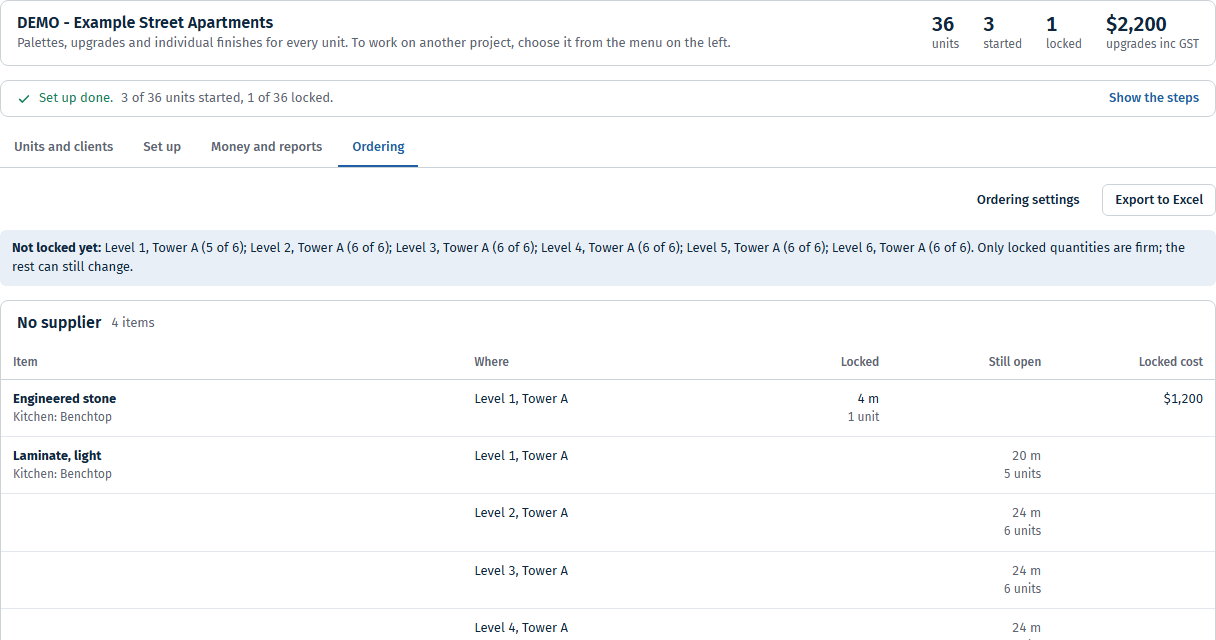
Each supplier has a card. Under it, each item is listed by level with its Locked quantity and units and its Still open quantity and units.
-
The note at the top names the levels not fully locked: “Not locked yet: Level 5, Tower A (3 of 12)”. Once everything is locked it says the quantities are firm.
-
Nothing chosen lists items that cannot be ordered yet because they have no option.
-
Choose Export to Excel for a spreadsheet of the same figures.
Switch ordering on for the project
Section titled “Switch ordering on for the project”Ordering is off on every project until someone switches it on.
-
Choose Ordering settings.
-
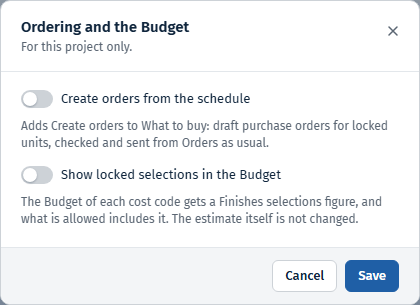
Switch on Create orders from the schedule.
-
If you want, also switch on Also make them when a level is complete.
-
Choose Save.
Create orders
Section titled “Create orders”- Choose Create orders.
- Under Where, choose the Whole project, a building or a level.
- Each supplier is listed and ticked, with what it would get: “Order for Level 5: 3 lines”. Untick any you do not want yet.
- Read the sentence at the bottom: “Creates 2 draft purchase orders with 3 lines for 1 supplier, and 1 draft variation on SC-002. Nothing is approved or sent.”
- Choose the button, which reads Create 2 orders (or Create 2 orders and 1 variation).
- The result lists each order with a link to open it in Orders, and each variation.
What happens next
Section titled “What happens next”- The orders are drafts. Check each one, then send it for approval and to the supplier from Orders as usual.
- A supplier with a subcontract on the project gets a draft variation instead, for the difference from Standard only, because the Standard is already in the subcontract. Open the subcontract in Subcontracts to check and send it.
- With Also make them when a level is complete on, locking the last unit on a level makes that level’s draft orders straight away, and the lock’s notice says what was made. If the person locking may not create orders, the notice says so and nothing is made.
Good to know
Section titled “Good to know”- Only locked units are ordered, and nothing is ordered twice. Running Create orders again makes only what is new.
- Only recipe lines with a supplier and an estimate item are ordered. The others are listed as not ordered because of their recipe.
- A unit with no unit type, or a type with no sheet, does not hold a level up.
- A unit unlocked after its finishes were ordered is listed under Changed after ordering with its order or variation. The order is not changed for you: revise it in Orders or Subcontracts.
- A change request applied to a locked unit does not reorder by itself; its new lines show here.
- Quantities are each unit’s sheet quantity times the recipe’s quantity per. Costs are ex GST at today’s recipe rates.