

Plant Register
Plant Register is the company’s list of plant and equipment, owned or hired: where each item is today, what it has cost each project, and what is due or overdue. It also keeps the small tools and who has them, and the bookings for shared things on site such as the crane, the hoist and the gates.
Open Plant Register from the menu on the left, under Site resources. It has five tabs:
- All plant: every item the company owns or has on hire. It works without a project chosen.
- On this project: the plant on the project chosen on the left, and its cost by cost code.
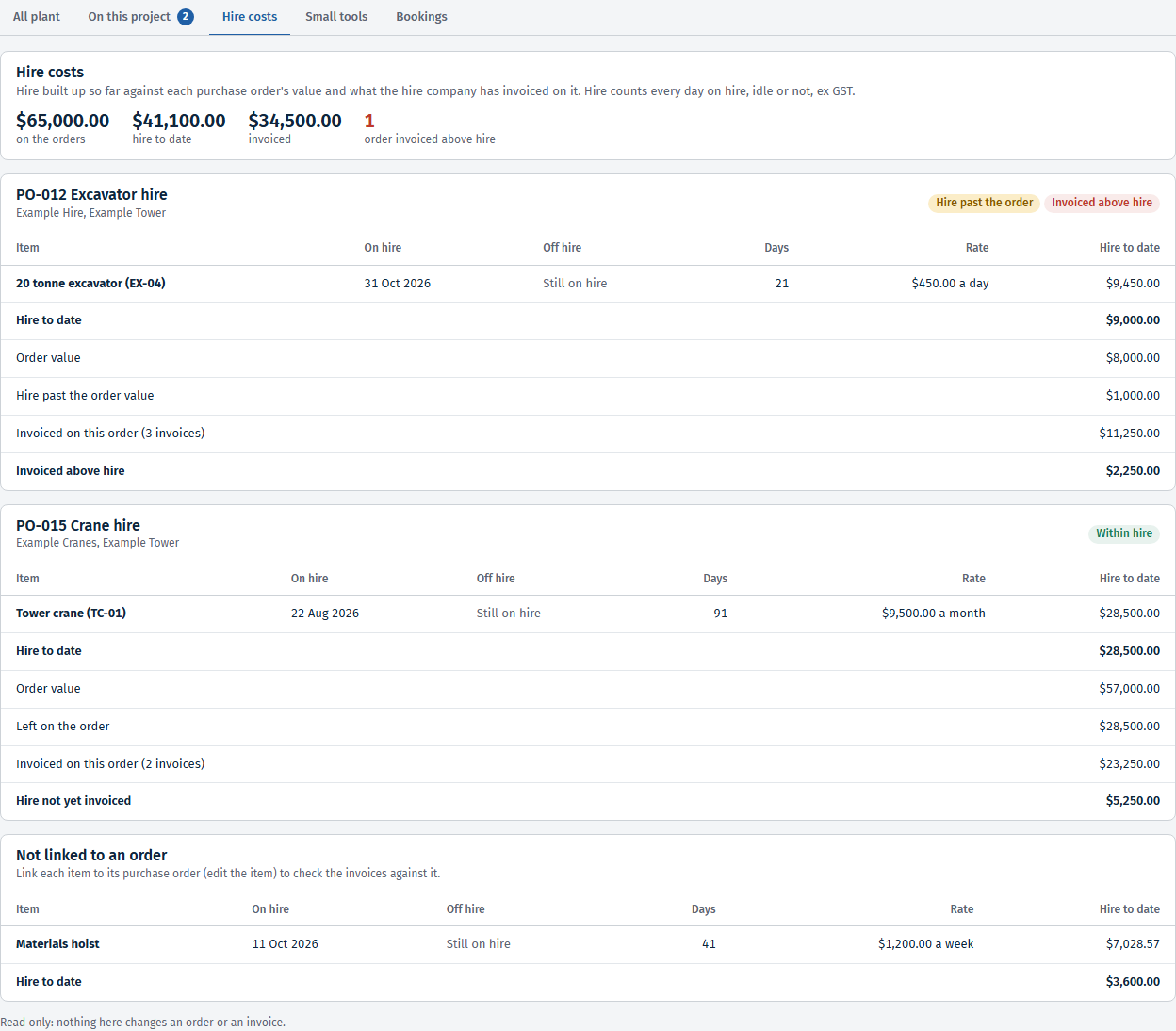
- Hire costs: hired plant by purchase order, checked against what the hire company invoiced. Shown only to people who may see plant costs.
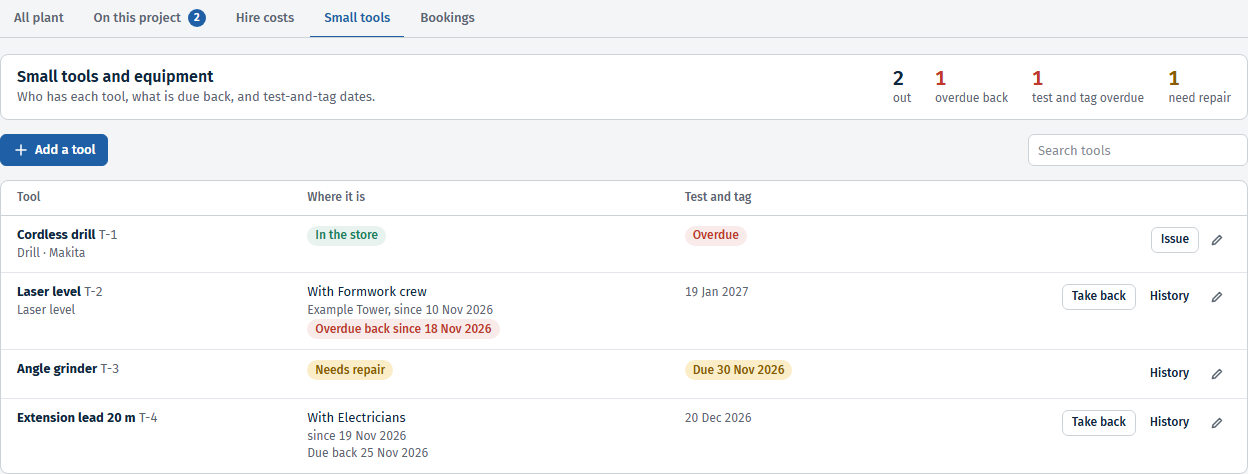
- Small tools: who has each tool, what is due back, and test-and-tag dates.
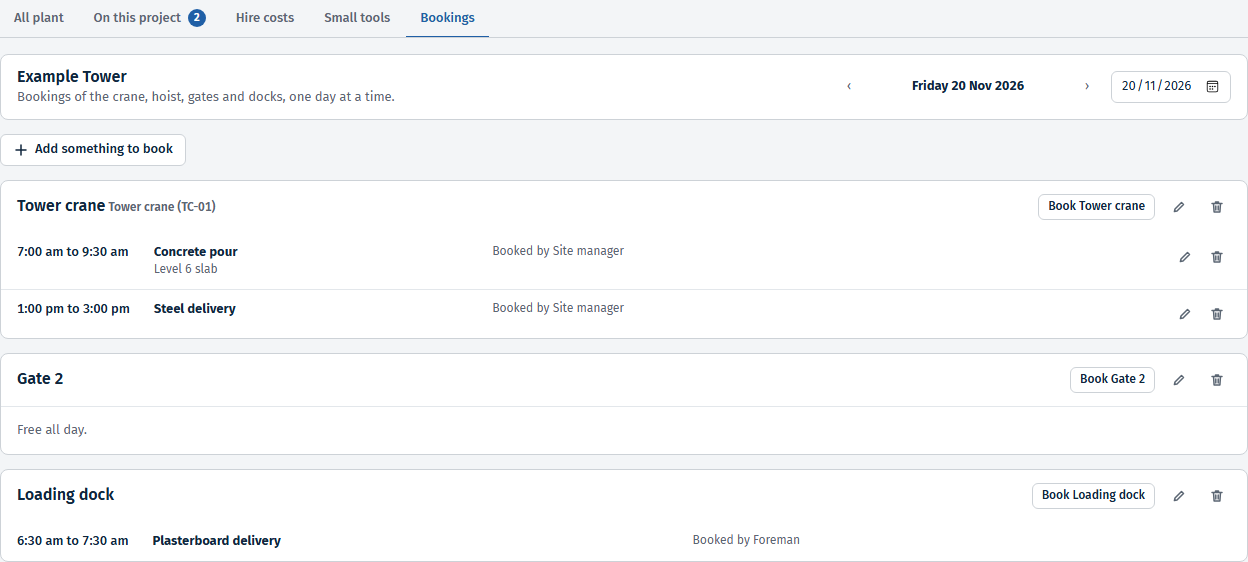
- Bookings: one day at a time, what is booked on the project chosen on the left.
The markers on All plant
Section titled “The markers on All plant”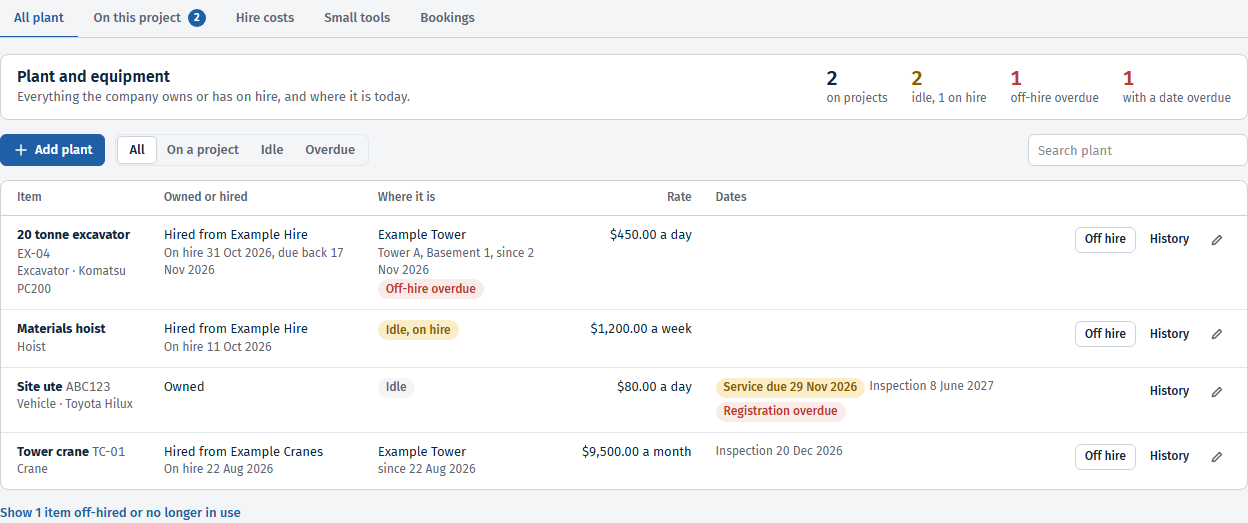
| Marker | Meaning |
|---|---|
| A project’s name | It is on that project today, with the location and since when |
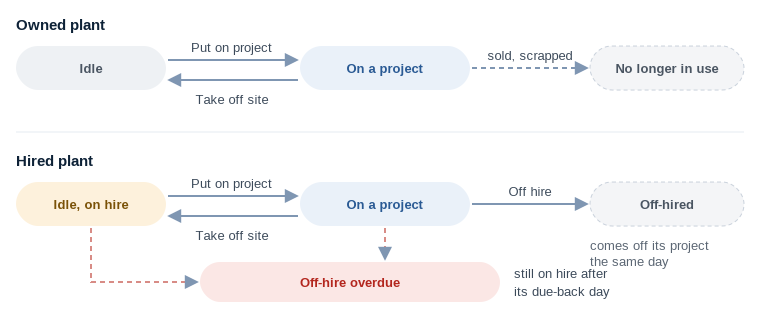
| Idle | It is on no project today |
| Idle, on hire | Hired and on no project today: hire is still being paid |
| Off-hire overdue | Hired, still on hire, and past its due-back day |
| Service, Inspection or Registration overdue | That date has passed |
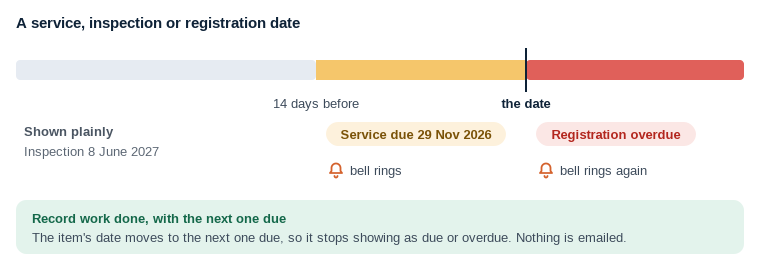
| Service, Inspection or Registration due (a date) | That date is within the next 14 days |
The counts at the top say how many items are on projects, idle, off-hire overdue and with a date overdue. All, On a project, Idle and Overdue narrow the list, and the search box finds an item by name, number, make or hire company. Items off-hired or no longer in use leave the list; the link under it brings them back.
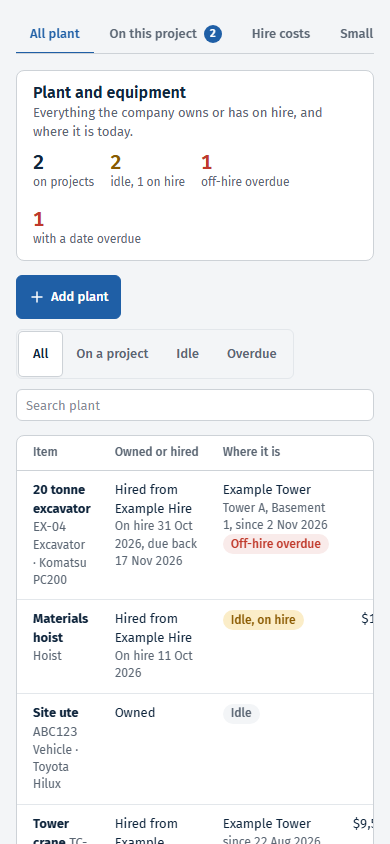
On a phone the counts stack and the list scrolls sideways.
How plant cost is worked out
Section titled “How plant cost is worked out”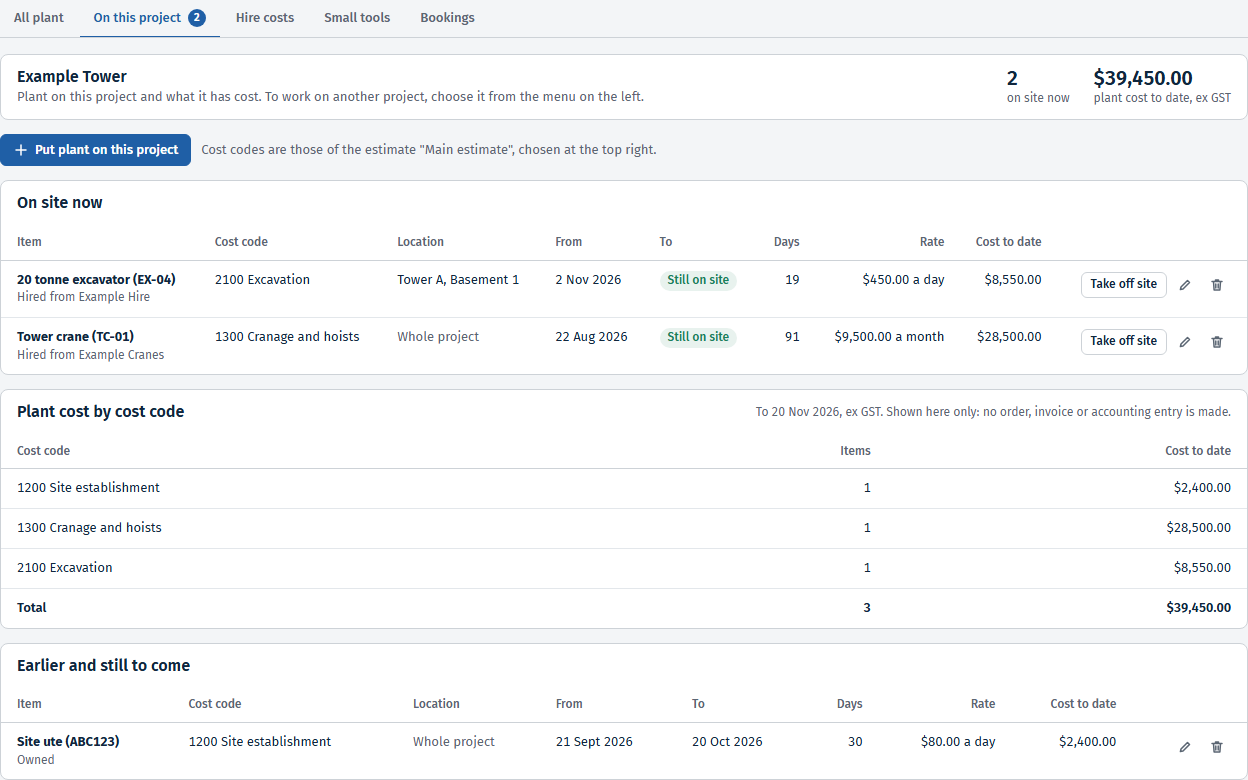
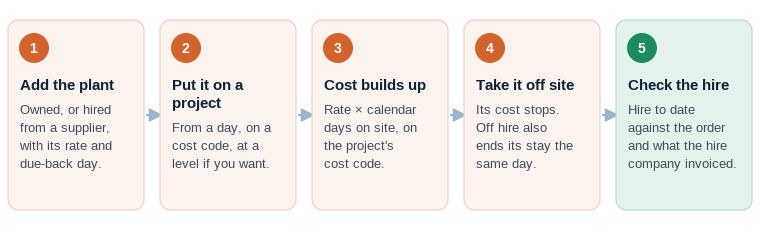
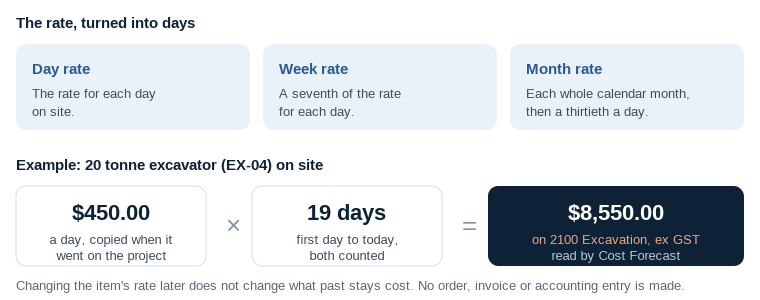
- A stay on a project costs the rate for each calendar day on site, counting the first and last day, up to today while it is still there. A stay that starts in the future costs nothing yet.
- A day rate is charged per day; a week rate is a seventh of it a day; a month rate counts whole calendar months, and a thirtieth of it a day for the rest.
- The rate is copied when the item goes on the project, so changing the item’s rate later does not change what past stays cost.
- The cost shows here only. No order, invoice or accounting entry is made. Cost Forecast reads it: owned plant’s charge as actual cost, hire as hire accrued.
Hire costs
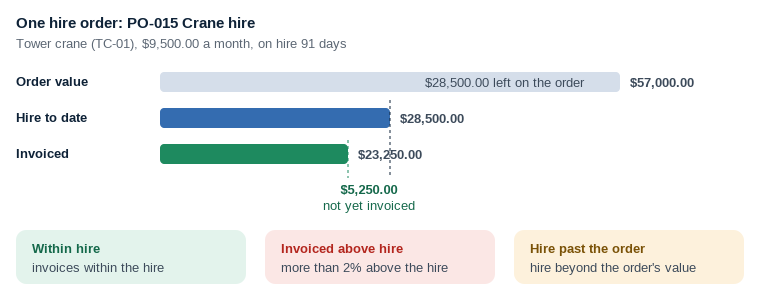
Section titled “Hire costs”The Hire costs tab lists hired plant by the purchase order it was hired on (edit the item and choose Purchase order to link it). For each order: the items with their days and Hire to date, the Order value, Left on the order (or Hire past the order value), Invoiced on this order, and Hire not yet invoiced (or Invoiced above hire). Hire counts every day on hire, idle or not, ex GST.
- Invoiced above hire marks an order invoiced more than 2% above the hire built up on it. Hire past the order marks one whose hire has gone past the order’s value.
- Hired items with no order are listed under Not linked to an order.
- The tab only reads. Nothing here changes an order or an invoice.
Small tools
Section titled “Small tools”The Small tools tab keeps each tool on its own: who has it, what is due back, and its test-and-tag date.
- Add a tool asks for the Name and the Test and tag due date; More details has the rest. Choose Add tool.
- Issue sends a tool in the store to a worker from Workforce Planning, optionally on a project and with a Due back day. The sentence underneath says what will happen.
- Take back asks How it came back: Good (back in the store), Damaged (marked Needs repair and not issued again until someone edits it and switches on Fixed: it can be issued again) or Lost.
- History lists everyone who has had a tool. A tool can be deleted only if it was never issued.
Bookings
Section titled “Bookings”The Bookings tab shows one day at a time for the project chosen on the left. First add what can be booked with Add something to book (the tower crane, a hoist, Gate 2, a loading dock), then book it with Book beside it: the day, From and To, and who it is For. Two bookings of the same thing cannot overlap: the window names the booking in the way before you save, and saving is refused. One booking may start the moment another ends.
Reminders
Section titled “Reminders”Each night the bell rings for people who hold “Add and change plant and equipment” when a service, inspection or registration is due within 14 days, again on the day it is overdue, and when hired plant is past its due-back day. People who hold “Look after small tools” are told when a tool’s test-and-tag date has passed or a tool is overdue back. Each rings once for each stage. Nothing is emailed.
Who can do what
Section titled “Who can do what”| Permission on the Users page | Lets you |
|---|---|
| (the module) | Open the page and see where plant is |
| Add and change plant and equipment | Add, change, off-hire and retire plant; record work done; attach files |
| Put plant on a project and take it off | Put plant on a project, change and end its stay. Also needs edit access to the project |
| See hire rates and plant cost | See and set rates and costs, and the Hire costs tab. Without it no rate or dollar figure reaches your screen |
| Delete plant and equipment | Delete an item that has never been on a project, a stay, a record of work done, or a tool never issued |
| Look after small tools | Add, change, issue and take back small tools |
| Make site bookings | Book something on the Bookings tab, and change or cancel your own bookings |
| Set up what can be booked | Add, rename and remove what can be booked, and change or cancel anyone’s booking |