

Try it on a demo project
A new company has empty pages. A demo project fills them: one made-up job, part-way through construction, with something to look at in every module. Use it to find your way around and to show your team, then remove it.
Before you start
Section titled “Before you start”- Who can do this: a company administrator. It is not a permission on the Users page.
- A company has one demo project at a time.
-
Open Dashboard. In a company with no projects yet, press Create a demo project. Otherwise open Admin Panel, then Company settings, and press Create a demo project on the Demo project card.
-
The window Create a demo project says what it will add: one project, DEMO - Example Street Apartments, a 36-apartment building with its estimate, programme, subcontracts, claims, variations, drawings, site records and safety records, and 13 made-up companies. Press Create the demo project.
-
Creating the demo project shows each part as it is made, with a bar and “4 of 14 parts done”. Keep the window open; it takes less than a minute.
-
The demo project is ready opens. Press Open the demo project to go to it, or Close.
-
Choose DEMO - Example Street Apartments in the project picker on the left and open any module from the menu.
What happens next
Section titled “What happens next”The demo project is in your projects like any other. Every administrator of the company is given access to it. Its dates are set from the day it was made: the programme is 60 weeks and that day falls in week 34, so the structure is up, the facade is closing and fit-out has started.
Remove the demo project
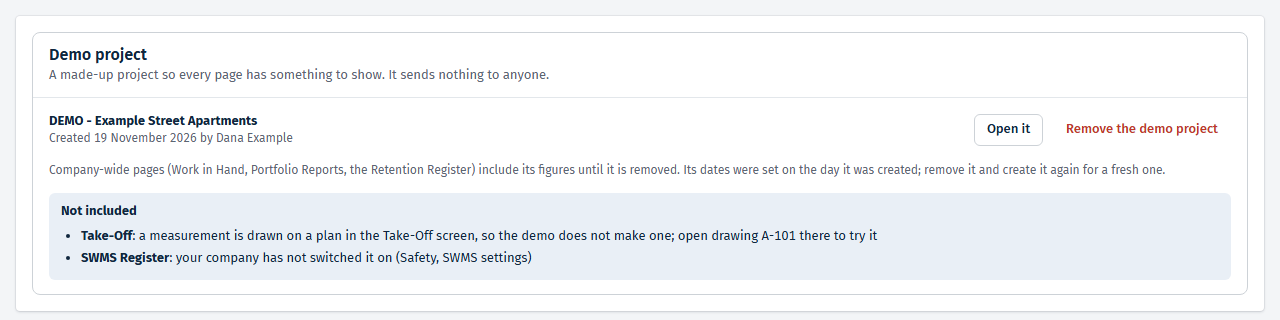
Section titled “Remove the demo project”- Open Admin Panel, then Company settings. The Demo project card shows its name, who created it and when.
- Press Remove the demo project. A window says what goes.
- Press Remove the demo project in that window. The card says the company has no demo project again.
Good to know
Section titled “Good to know”- It sends nothing to anyone: no email, no notification and no approval request, even if your company has approval workflows.
- Removing it cannot be undone. It removes the project, everything in it (including anything you added to it yourself) and the made-up companies. Your own projects, suppliers and cost codes are not touched. You can create it again afterwards.
- A made-up company that one of your own projects has since used is kept, and named when you remove the demo. It is an ordinary supplier from then on.
- Everything in it is made up: company names end in “(demo)”, and you can change anything you like.
- Company-wide pages such as Work in Hand, Portfolio Reports and the Retention Register include its figures until it is removed.
- Its dates do not move. For a fresh one later, remove it and create it again.
- If a part cannot be made for your company, for example a module your company does not have, the window lists it under Not included with the reason, and the rest is made. Take-Off measurements are never made: they are drawn on a plan in the Take-Off screen.
- If a part fails, everything made so far is removed again and the window says which part failed. Try again starts over.
- On the Dashboard, the button shows only while the company has no projects at all. After that, use Admin Panel, Company settings.