

Record a daywork sheet
Start a sheet on the day the instructed work is done, and add the labour, plant and materials as they are used. One sheet is one day’s work on one instruction.
Before you start
Section titled “Before you start”- Who can do this: “Record daywork sheets”.
- The daywork rates are set, so the lines pick up their rates. See Set the daywork rates.
Start the sheet
Section titled “Start the sheet”-
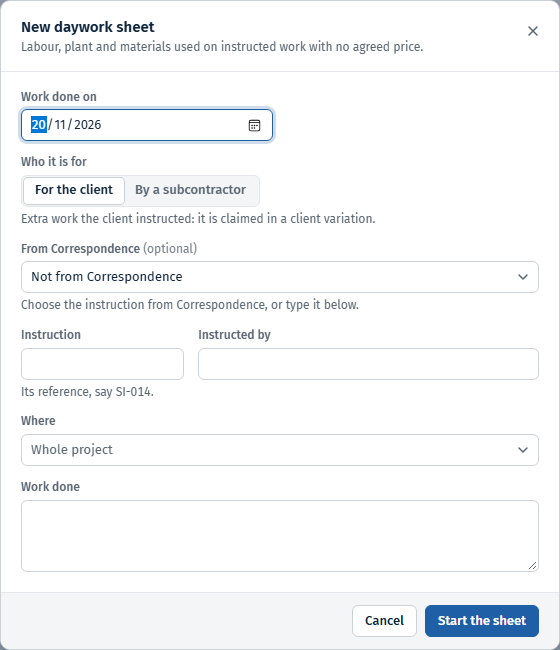
Open Daywork Sheets and choose New daywork sheet.
-
Work done on: the day. It cannot be in the future.
-
Who it is for: For the client or By a subcontractor. For a subcontractor, choose the Subcontract: only subcontracts that are approved, out for signing or executed are offered.
-
From Correspondence (optional): choose the instruction from the project’s correspondence. It fills Instruction and Instructed by, which you can still change. Or leave it and type the Instruction reference, say SI-014, and who gave it.
-
Where: the building, level or unit. Leave it empty for the whole project.
-
Work done: what was done. This is required.
-
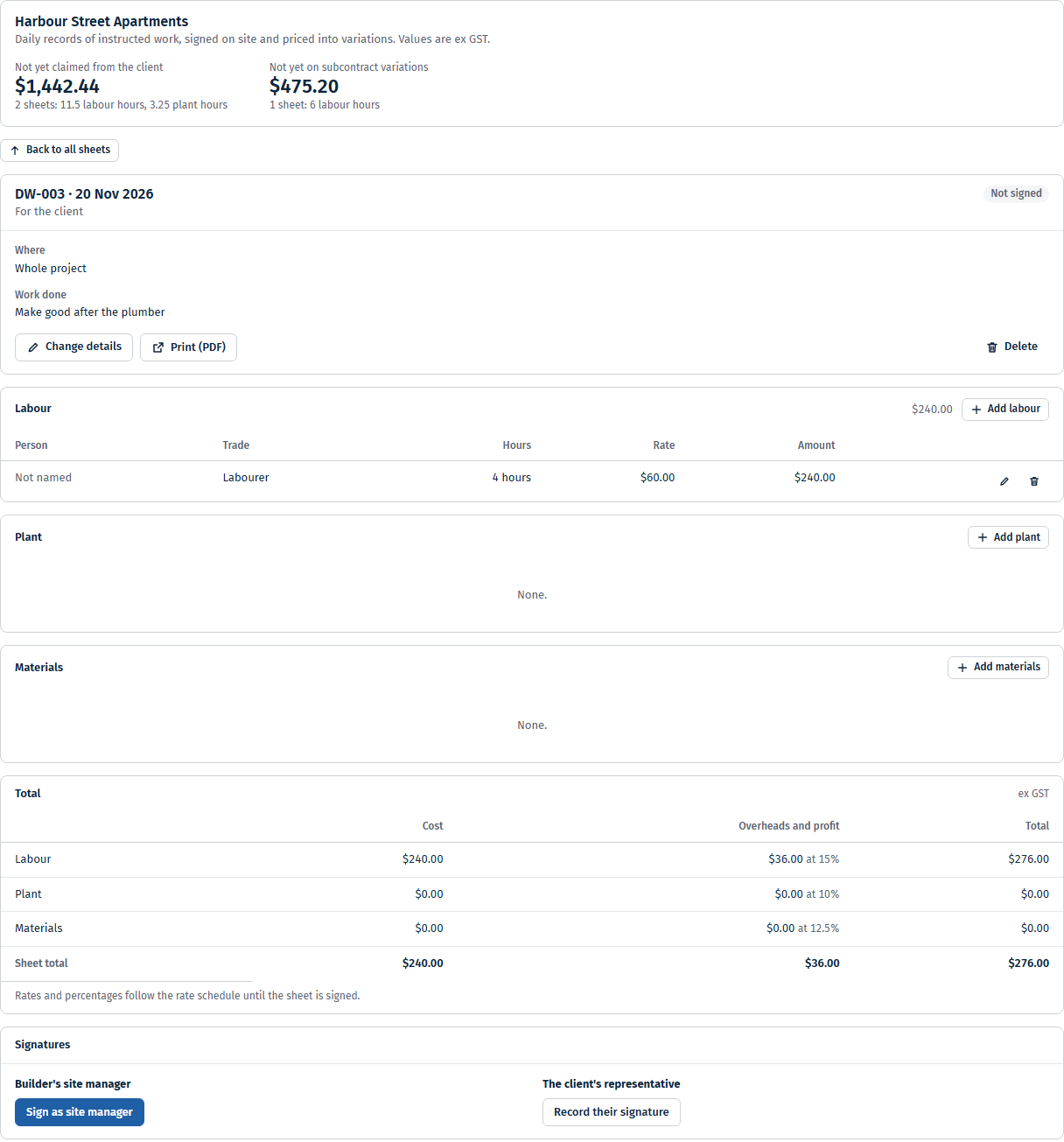
Choose Start the sheet. The sheet opens, numbered DW-001, DW-002 and so on.
Add the lines
Section titled “Add the lines”-
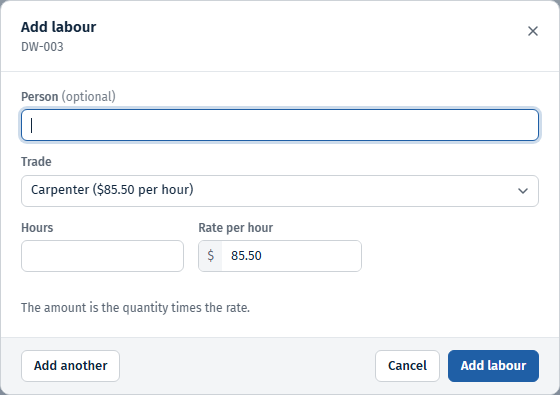
Under Labour, choose Add labour. Type the Person (optional), choose the Trade and type the Hours. The rate comes from the schedule and the amount shows before you save.
-
Choose Add labour to save it and close, or Add another to save it and start the next line with the same trade and rate.
-
Under Plant, choose Add plant. Pick the machine From the plant register or type it under Plant, choose the Plant category, and type the hours or days.
-
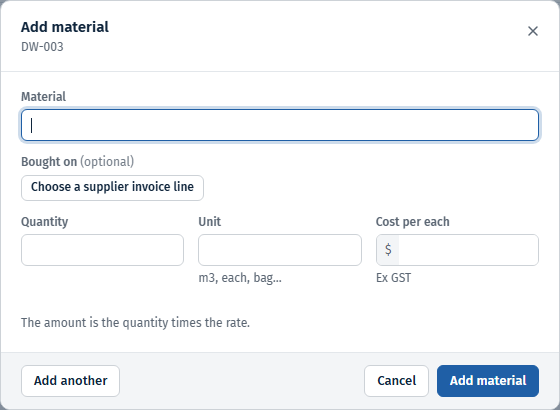
Under Materials, choose Add materials. Type the Material, the Quantity, the Unit and the Cost per unit ex GST. To use a supplier invoice, choose Choose a supplier invoice line: it fills the description, quantity and cost, which you can still change.
-
Add photos with Add a photo or file.
Good to know
Section titled “Good to know”- A rate different from the schedule needs a reason under Why this rate. The line then shows the schedule’s rate beside it.
- Work or plant not on the schedule: choose Not on the schedule, type the trade or category and its rate, and say Why this rate was agreed.
- Who it is for cannot change once the sheet has lines, because the lines are priced from that side’s rates.
- On a plant line where you have already typed a quantity, picking a machine from the plant register does not change the line’s unit or rate. If the register has a different rate, the window says so and offers Use the register’s (clears the quantity).
- The plant register’s own day rate is offered only when the schedule has no category for that machine, and only to people allowed to see plant costs.
- Delete removes an unsigned sheet. Its number is not used again.