

Give a subcontractor their portal link
Once a subcontract is signed, give the subcontractor their portal link so they can send claims and keep their paperwork current. One link covers every subcontract they have with you.
Before you start
Section titled “Before you start”- You need the “Enter subcontractor claims” and “See subcontract values” permissions on the project.
- The subcontract is Executed or Complete.
-
Open Subcontractor Claims and click the subcontract. Choose Portal link.
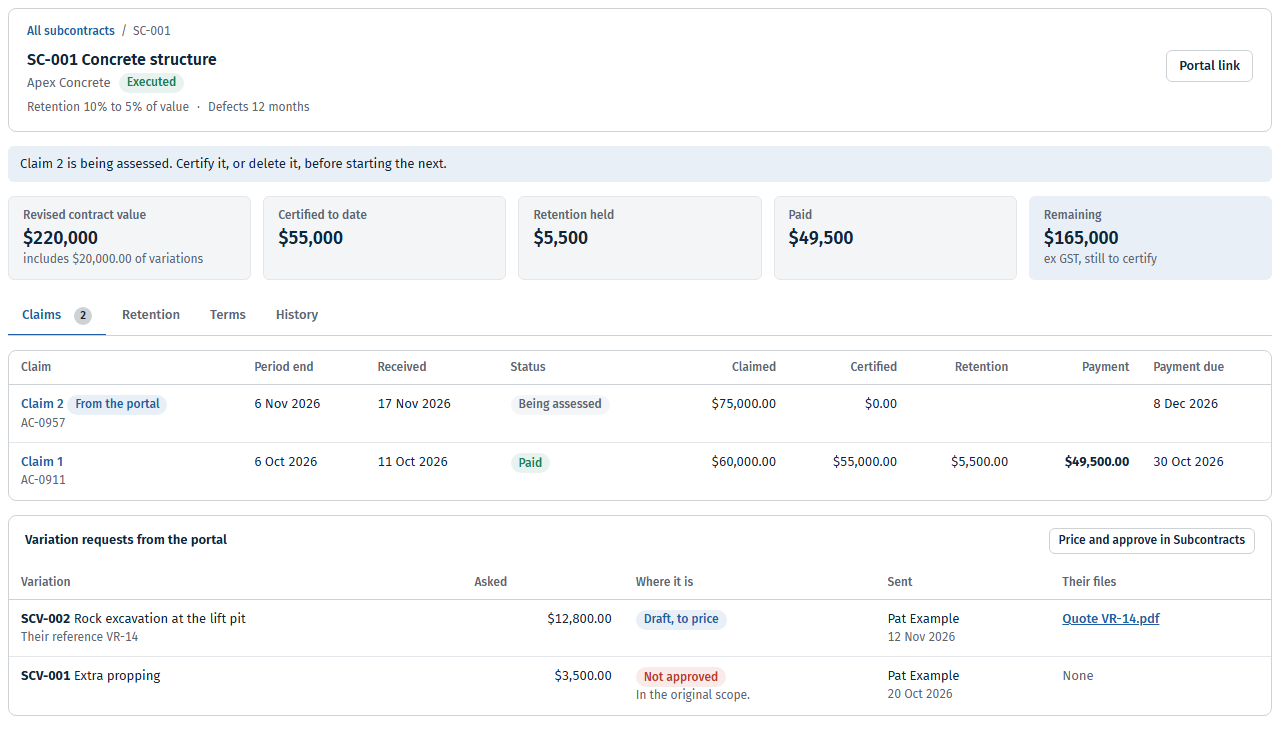
-
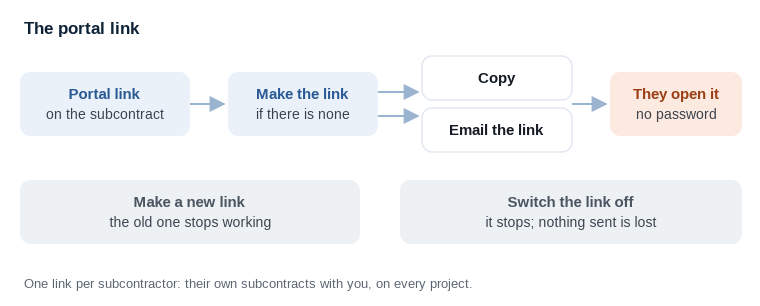
If they have no link yet, choose Make the link.
-
To send it yourself, choose Copy and paste it into your own email or message to them.
-
To send it from here, choose Email the link. To starts with their address on record; change it to send to someone else there. Edit the Message if you want, then choose Send to (the button names the address).
-
Choose Done.
What happens next
Section titled “What happens next”They open the link and see their subcontracts with you. The dialog shows when the link was made and when it was last opened. An emailed link is recorded in the subcontract’s history with the address and who sent it.
Good to know
Section titled “Good to know”- No password is needed, so send it only to them.
- The link keeps working until you make a new one or switch it off. It also stops when they no longer have a subcontract with you that is Executed, Complete or Terminated.
- Sent it to the wrong person, or someone has left? Make a new link: the old one stops working at once. Send them the new one.
- Switch the link off stops it with no new one. Claims and documents already sent stay as they are.
- A terminated subcontract stays in their portal, read only.
- Emailing makes the link first when there is none; it never replaces a live link.