

Record a client's payment
When a purchaser pays for their upgrades, record the payment against their unit. It is set against the unit’s invoices oldest first, so each invoice shows what is paid, what is left and whether it is overdue.
Before you start
Section titled “Before you start”- You need the “Record upgrade payments” permission. Nobody has it until an administrator ticks it for them; administrators always can.
- The unit has at least one invoice. See Invoice clients for their upgrades.
-
Open Finishes Schedule, choose Money and reports, then Billing.
-
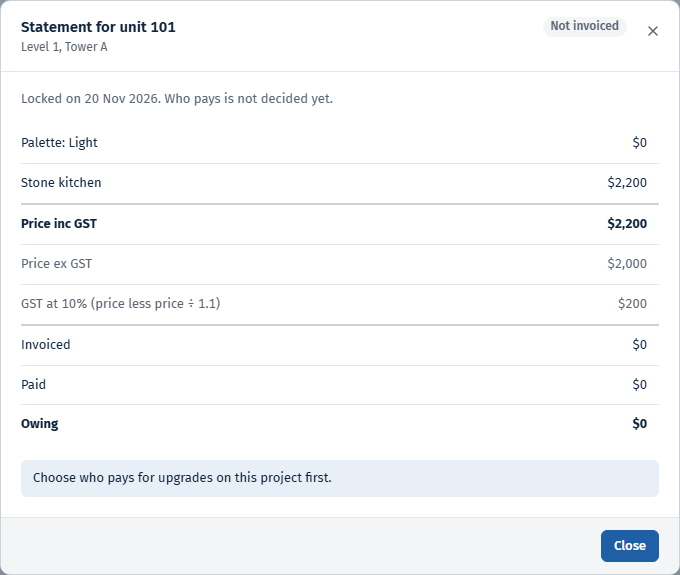
Choose the unit to open its statement.
-
Choose Record payment.
-
Check the Amount. It starts at what is owing.
-
Type the Date paid, choose how it was Paid by: Bank transfer, Card, Cheque or Other, and type the Reference and a Note if you have them.
-
Choose Record payment. A green line says the payment was recorded, and the statement shows the new figures.
What happens next
Section titled “What happens next”The unit’s Paid and Owing change on Billing, and its Payment column shows Paid, Paid so far or Owing. The client sees the same in their portal.
Good to know
Section titled “Good to know”- A payment cannot be more than is owing, and its date cannot be in the future.
- A payment recorded by mistake can be removed: choose Remove beside it in the statement. It is kept on the record, marked removed.
- Payments are recorded by hand. Nothing is read from your bank or your accounting system, and clients cannot pay online here.
- Reports lists locked units not fully paid under Outstanding.