

Certify a claim
Certifying fixes the assessment, holds back the retention and makes the supplier invoice for the amount to pay. Where your company has a Subcontractor claims approval workflow, the claim goes through it first.
Before you start
Section titled “Before you start”- You need the “Assess and certify claims” permission.
- The claim has been assessed and saved, every short line has its reason, and it has a payment due date.
-
Open the claim. The Approval box at the foot says whether a workflow applies to this certificate’s value.
-
If one applies, choose Send for approval. The claim is Waiting for approval and the people on the first step are asked in My Approvals. The last approval certifies it.
-
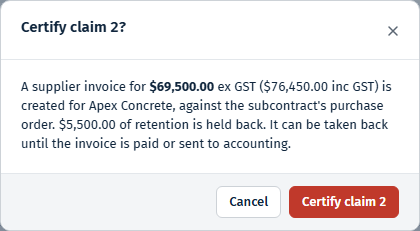
If none applies, choose Certify. The question that follows says what will be created and for how much. Confirm with the button that names the claim, for example Certify claim 2.
What happens next
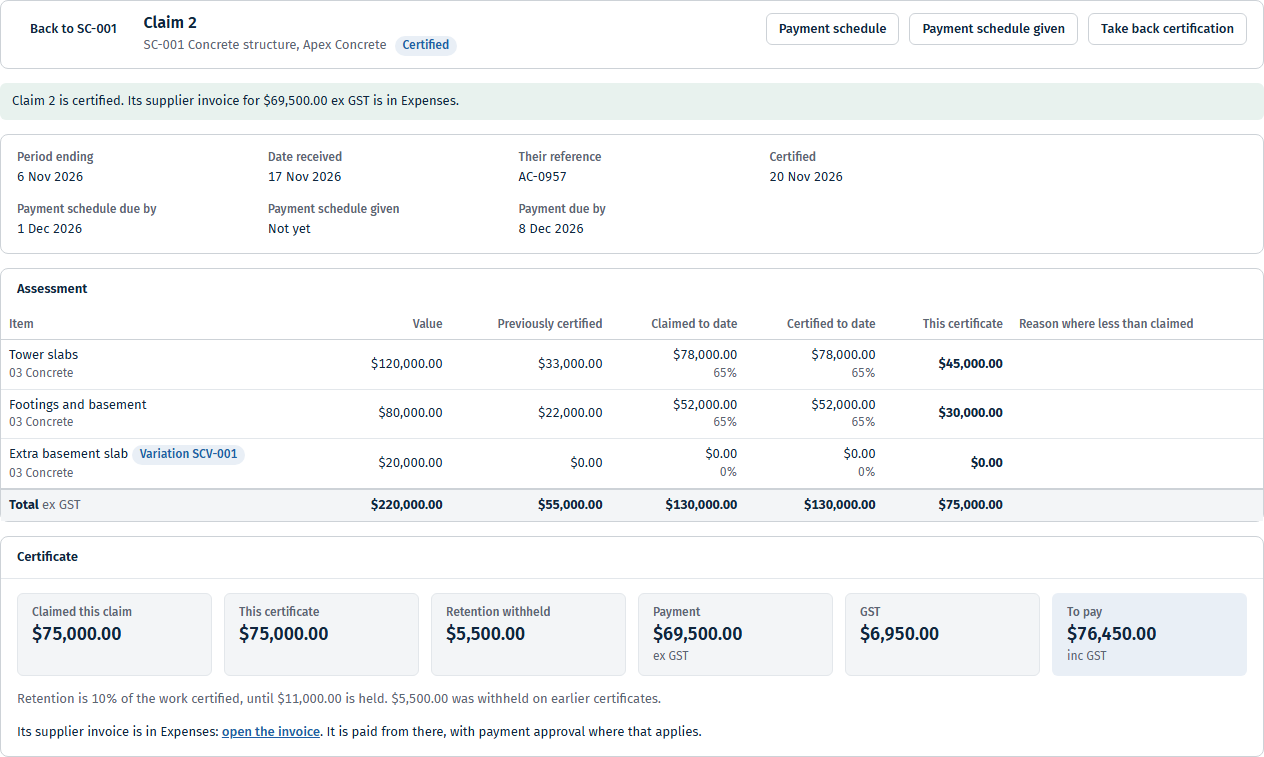
Section titled “What happens next”- The claim is Certified, and the retention withheld is added to the subcontract’s retention ledger.
- A supplier invoice for the payment is made against the subcontract’s purchase order, by cost code, dated the day the claim was received and due on its payment due date. The claim links to it. It is paid from Expenses, with payment approval where that applies.
- If it is rejected or sent back, the claim returns to Being assessed, with the reason in its history.
Good to know
Section titled “Good to know”- Take it back stops the approval while it waits. It asks first and names who will no longer be asked.
- The invoice cannot be changed or put in the trash in Expenses; it is the certificate. Documents, such as their tax invoice, can be attached to it there.
- The invoice needs no expense approval, because the claim was approved here. Its payment can still need approving, and Mark as paid is refused while the subcontractor is stopped for payment in Compliance.
- A certificate with nothing to pay makes no invoice.