

Change the at-risk rule
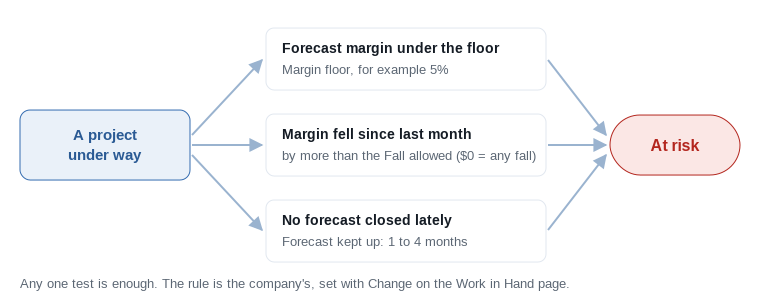
The at-risk rule decides which projects Work in Hand marks in red. Until it is changed, a project under way is at risk when its forecast margin is under 5%, when its margin has fallen at all since the month before, or when no forecast has been closed for 2 months. Set it to the margin your company works to.
Before you start
Section titled “Before you start”- Who can do this: Change the at-risk rule. Administrators always can. Without it, Change is not shown.
-
Open Work in Hand from the menu on the left.
-
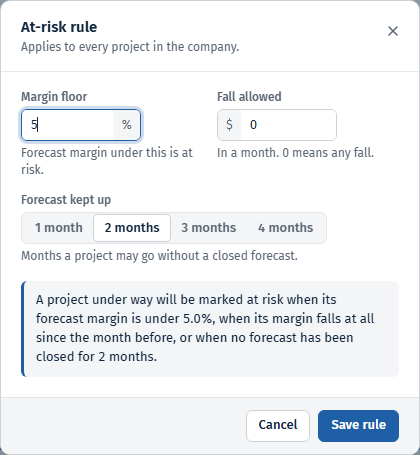
Choose Change, at the end of the line that starts At risk means. The At-risk rule window opens.
-
In Margin floor, type the percentage below which a project is at risk, for example 5.
-
In Fall allowed, type how many dollars the margin may fall in a month before the project is at risk. 0 means any fall.
-
In Forecast kept up, choose how many months a project may go without a closed forecast.
-
Read the sentence at the foot of the window: it is the rule in words.
-
Choose Save rule. The table and the At risk tile change straight away.
Good to know
Section titled “Good to know”- The rule is the same for every project in the company.
- The margin floor can be from -100 to 100.
- The rule is not applied to finished projects.