

Put plant on a project
When a machine arrives on site, put it on the project against a cost code. From that day its cost builds up on the project until it is taken off site.
Before you start
Section titled “Before you start”- Who can do this: “Put plant on a project and take it off”, with edit access to the project.
- The item is in the register, and the project’s estimate has cost codes.
-
Choose the project on the left, open Plant Register and the On this project tab.
-
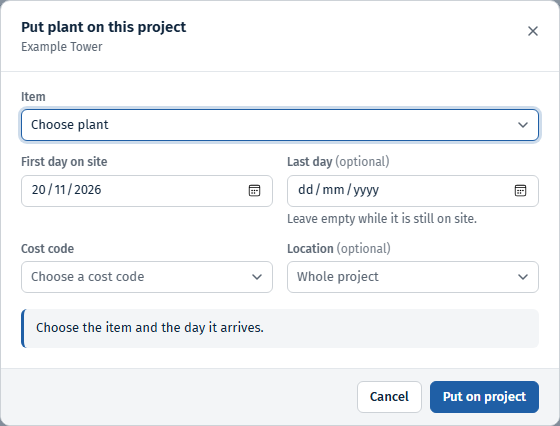
Choose Put plant on this project.
-
Choose the Item. Items already on another project say so.
-
Choose the First day on site. Leave Last day empty while it is still there.
-
Choose the Cost code from the tree; type to find one.
-
Choose the Location, if the project has buildings and levels. Leave it empty for the whole project.
-
The rate is shown as “Charged at” the item’s rate. To charge this project a different rate, choose Change the rate for this project.
-
Read the sentence at the bottom, then choose Put on project.
What happens next
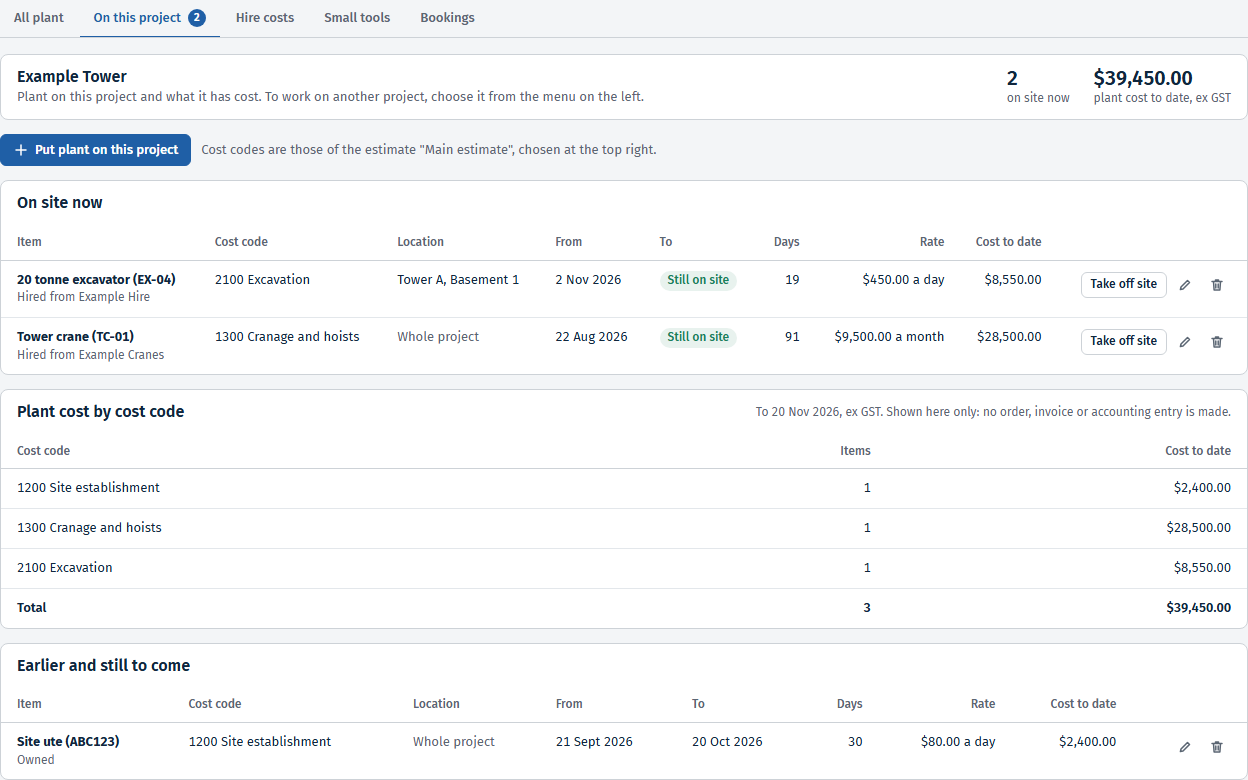
Section titled “What happens next”The item is listed under On site now with its days and cost to date, and Plant cost by cost code includes it. On All plant it shows the project’s name and the day it arrived.
Good to know
Section titled “Good to know”- An item cannot be on two projects, or twice on one project, on the same day. The window says which project it clashes with, and nothing is saved.
- Hired plant cannot be put on a project before its on-hire day or after its off-hire day.
- When the project has more than one estimate, the cost codes are those of the estimate chosen at the top right of the page; the screen says which.
- The bin on a row removes a stay put on by mistake, and its cost comes off the project. To end a stay, use Take off site.