

Open On site on your phone
Open the phone page once in your phone’s browser and add it to the home screen. From then on it opens with one tap, full screen, like an app.
Before you start
Section titled “Before you start”- You have a SmarteBuild Commercial login, and at least one of My Approvals, Defects or Quality in your company.
- The phone has signal.
-
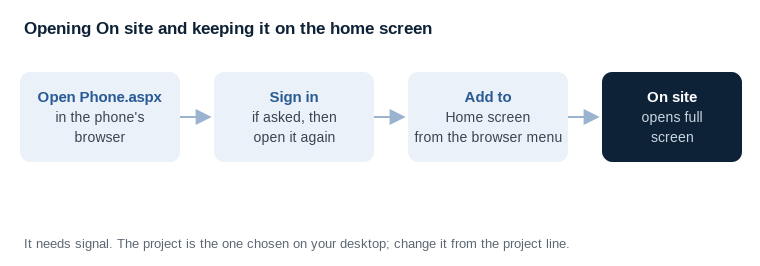
In the phone’s browser, open your company’s SmarteBuild address with Phone.aspx at the end. There is no link to it in the menu yet, so type it, or ask whoever looks after SmarteBuild to send you the link.
-
If you are not signed in, the sign-in page opens. Sign in, then open the same address again.
-
The page opens on your first tab, with the tabs you hold along the bottom.
-
In the browser’s menu, choose Add to Home screen (on an iPhone it is under the Share button). Where it sits differs from browser to browser.
-
The phone puts an icon named On site on the home screen. Tap it to open the page full screen.
Good to know
Section titled “Good to know”- After signing in you land on your usual start page, not on the phone page. Open the phone page again from the icon or the address.
- It needs signal. A save made without signal says so and keeps what you typed.
- Nothing is installed and nothing is sent to the phone: no push notifications, no text messages.