

Choose which cards to show
The Dashboard starts with six cards. Switch on the ones you use, switch off the ones you do not, and set how wide each one is and in what order they come.
Before you start
Section titled “Before you start”- Anyone who can open the Dashboard can do this. Your layout is saved to your own account; nobody else’s Dashboard changes.
-
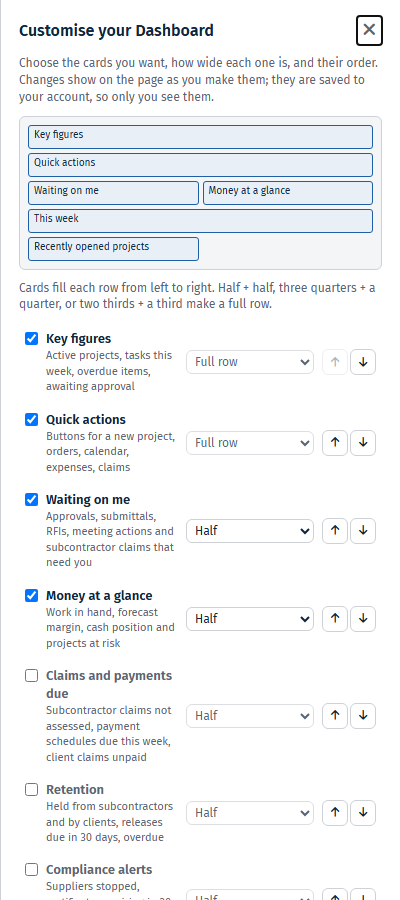
Open Dashboard and press Customise at the top right. The Customise your Dashboard panel opens down the right-hand side, with a small picture of your layout at the top and every card you can have listed below it.
-
Tick a card to show it, or untick it to hide it. The page behind the panel changes as you go.
-
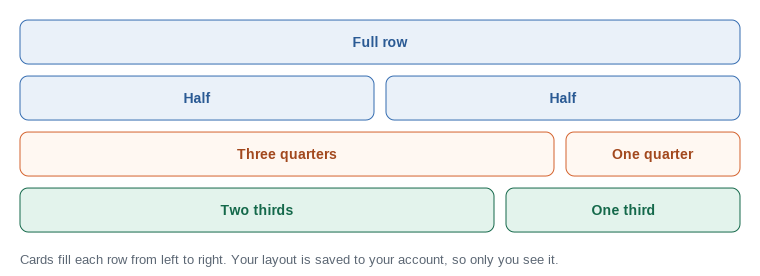
Choose the card’s width in the list beside it: Full row, Three quarters, Two thirds, Half, One third or One quarter.
-
Use the up and down arrows beside a card to move it earlier or later on the page.
-
Press Save. The panel closes and your layout is kept.
Good to know
Section titled “Good to know”- Cards fill each row from left to right. Half and half, three quarters and a quarter, or two thirds and a third make a full row.
- Key figures and Quick actions are always a full row: only on or off, and their place.
- Cancel, the cross or Escape closes the panel and puts the page back as it was. Nothing is saved until Save.
- Reset to default puts back the starting set of six cards. It is saved only when you press Save.
- A card marked “Not available on your account” cannot be shown to you, whatever you tick, for example because you do not have “See money figures”.
- A Commercial card for a module you do not have is not in the list at all.
- If every card is switched off, the page says so and points you back to Customise.