

Log a defect on your phone
Walking the job, log each defect where you stand, with photos from the phone’s camera. It goes straight onto the project’s Defects list with its own number.
Before you start
Section titled “Before you start”- Who can do this: the Defects permission “Add and edit defects”. Marking one fixed or reopening it needs “Close defects”.
- The project is chosen at the top of the Defects tab.
Log a defect
Section titled “Log a defect”-
Open On site and the Defects tab. Choose the place with the location filter, if you want, so the new defect starts there.
-
Tap Log a defect.
-
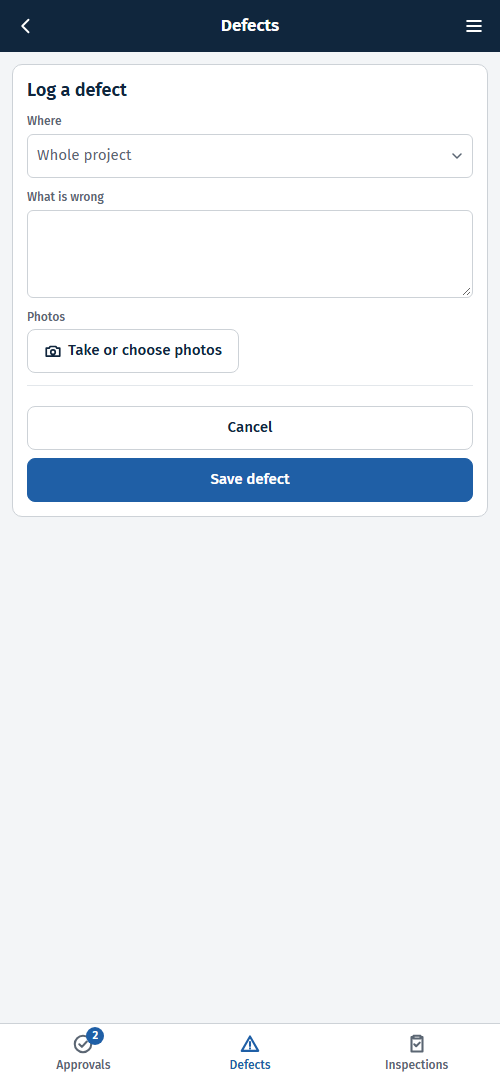
Check Where: the building, level, unit or the whole project.
-
Type What is wrong.
-
Tap Take or choose photos to take photos with the camera or choose them from the phone.
-
Tap Save defect. You are back on the list with a line such as “Logged DEF-014 at Unit 501 with 2 photos.”
Close a defect
Section titled “Close a defect”-
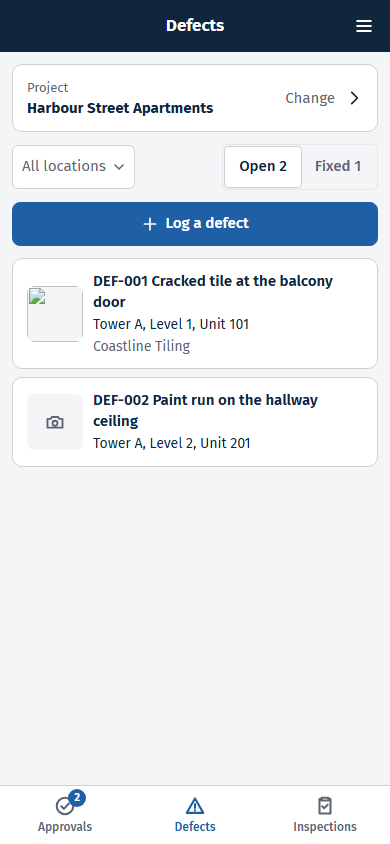
On the Defects tab, choose Open or Fixed, and the place with the location filter. Choosing a level takes in its units.
-
Tap the defect. It shows its photos (tap one to see it large), where it is, who it is with and when it was logged.
-
Tap Mark fixed. It says “Marked fixed.” Reopen puts it back.
-
Add photos adds more photos to it.
Good to know
Section titled “Good to know”- The number, such as DEF-014, is given by SmarteBuild, the next in turn.
- If the defect is saved but its photos are refused, it opens the defect so you can add them again; it is not saved twice.
- On a project with more than one estimate, defects are kept on an estimate: choose it under Estimate above the list.
- Everything here is the same defect on the desktop Defects page.