

Send the minutes
Once the minutes are issued, email them to the people on the meeting’s list and anyone else who needs them. Each person gets their own email with the minutes PDF attached, and the meeting keeps a record of who was sent what.
Before you start
Section titled “Before you start”- Who can do this: “Add and edit meetings and minutes” on the Users page, or a project role that carries it. Administrators always can.
- The minutes are issued. A meeting reopened to correct cannot be sent until its revision is issued.
-
Open Meetings and click the issued meeting.
-
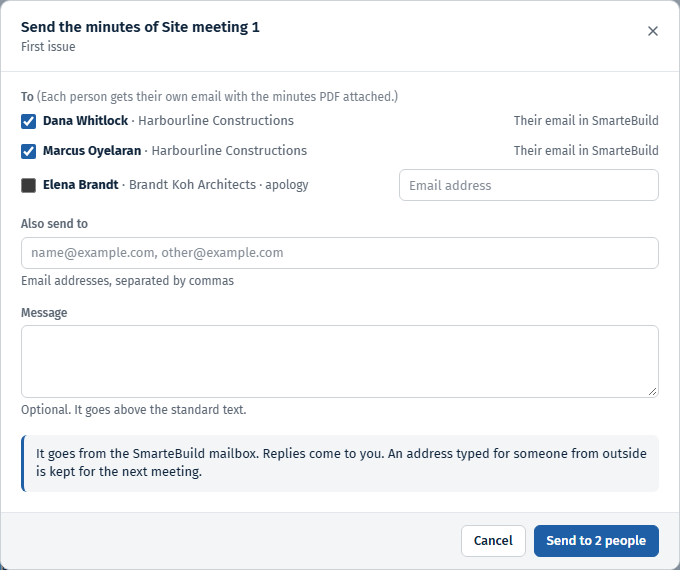
Choose Send minutes. The window lists the meeting’s people. Everyone with an email address is ticked, whether they attended, sent an apology or were absent.
-
Untick anyone who should not get them. A person in your company is sent to their email in SmarteBuild, which is not shown. For someone outside your company, type their Email address; it is kept for next time.
-
Under Also send to, type any other addresses, separated by commas.
-
Type a Message if you want one. It goes above the standard text.
-
Choose Send to the number of people, for example Send to 6 people. A green line says how many it went to.
What happens next
Section titled “What happens next”- Each address gets its own email, so nobody sees the others’ addresses. It says which meeting, the project and the date it was held, and ends with your name and company. Replies come to you.
- Minutes sent on the meeting lists each person, which issue they were sent, when, and by whom. If an address could not be sent, it is marked Not sent with the reason; the others still go.
Good to know
Section titled “Good to know”- The latest issue is what is sent. After a correction, send again to send revision 1. Earlier issues still open from Minutes issued.
- Sending again sends again. Nothing stops a second send to the same people.
- At most 40 addresses in one send. An address chosen twice gets one email.
- A person in your company with no email in SmarteBuild cannot be ticked.