

Put an approved extension on the programme
An approved extension of time moves the date for practical completion, but not the programme by itself. When you want the programme to show it too, put the approved days on the task that was held up, as a delay.
Before you start
Section titled “Before you start”- Who can do this: anyone with Manage extensions of time and delay notices and the Schedule permission Add Delay, for the whole company or through their role on the project. Administrators always can.
- The client has approved the extension, in full or in part.
- The project has a programme in the Schedule.
-
Open Head Contract and the Extensions of time tab.
-
On the approved claim, choose Add to the programme.
-
If the project has more than one programme, choose the Estimate first.
-
Choose the Task that was held up. The window says when the programme finishes now and when it would finish with the delay. If the task has spare time after it, it says the finish would not move.
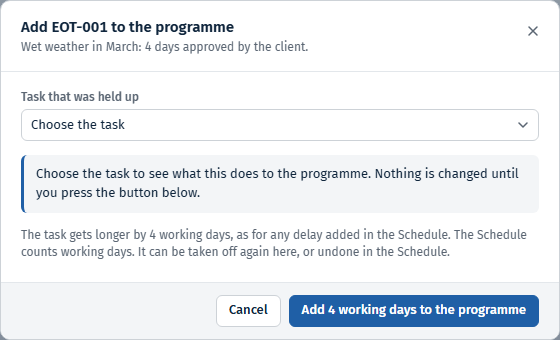
-
Choose the button, such as Add 4 working days to the programme. Nothing changes until you do.
What happens next
Section titled “What happens next”- The task gets longer by that many working days, as for any delay added in the Schedule, and the tasks linked after it move with it. The delay is named after the claim, such as EOT-001.
- The claim says “On the programme: 4 days on …” with the task’s name. Choose it to see the task, the delay, who added it and the programme’s finish before and after.
- To undo it, open that and choose Take it off the programme. The tasks that follow move back; the extension of time stays approved.
Good to know
Section titled “Good to know”- If the project has no programme yet, the window says so and offers only Close and Open the schedule. Build the programme, then come back. The extension of time itself is not affected.
- If you change the days approved, or reject the claim, while its delay is on the programme, you must choose Take it off the programme or Leave it on the programme before saving. If you leave it, the register says it no longer matches the client’s answer.
- A claim with a delay on the programme cannot be deleted until the delay is taken off.
- If the delay is removed in the Schedule instead, the claim says “Its delay was removed in the Schedule”. Open it and choose Clear this record to tidy it up.
- Someone without Add Delay sees “Not on the programme” in place of the button.