

Handle change requests
Once a unit is approved or locked, it does not change by accident. When a purchaser wants something different, or something that is not in the catalogue at all, it comes in as a change request: you price it, the client accepts the price, and you apply it to the unit. The unit stays locked throughout.
Before you start
Section titled “Before you start”- You need the “Handle finishes change requests” permission.
- A Change after lock is for a unit that is approved or locked. A request for something Not in the catalogue can be on any unit.
Where requests come from
Section titled “Where requests come from”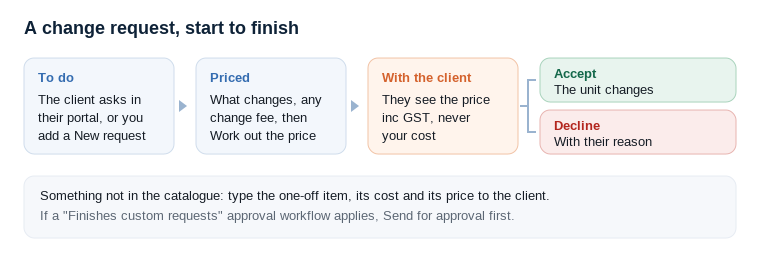
- The client, in their portal under Changes and special requests: Ask for a change on an approved or locked unit, or Ask for something not listed.
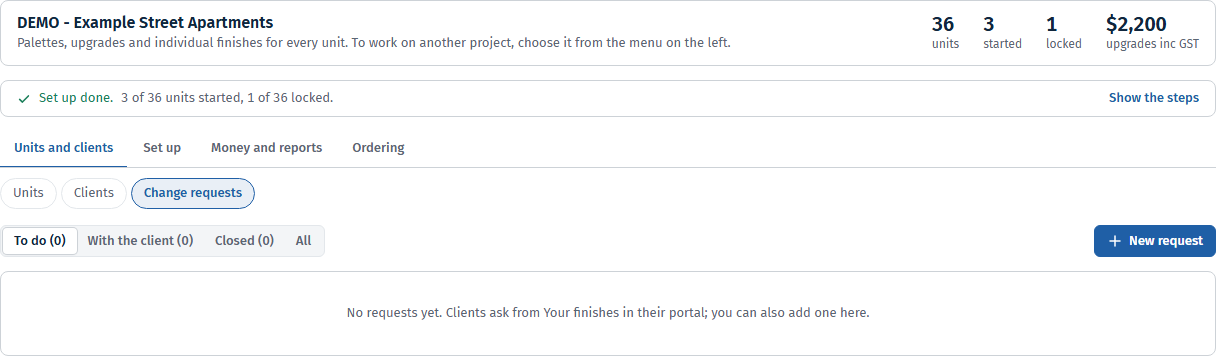
- You: open Finishes Schedule, choose Units and clients, then Change requests, then New request. Choose the Kind, the Unit, type What is asked for, and choose Add request.
The number of open requests shows beside Units and clients. Requests are numbered per project: CR-001, CR-002.
Price a change after lock
Section titled “Price a change after lock”-
On Change requests, choose the request. To do shows the requests waiting for you.
-
Under What changes, set what the change does to the unit: its Palette, the Upgrades to add or take off, and any single items.
-
Add a Change fee (inc GST) if you charge one, and a Note to the client if it helps.
-
Choose Work out the price. The price is today’s catalogue price of the difference, plus the fee. Taking something off gives a credit, shown as “less $300”.
-
If any of the unit’s items are already on an order, they are listed: “Already on order for this unit”.
-
Choose Send to client.
Price something not in the catalogue
Section titled “Price something not in the catalogue”- Choose the request.
- Choose For which item of the unit it is, and type the one-off item’s Name, and its Supplier, Product code and Colour if you know them.
- Type its Cost (needs “See cost and margin”) and the Price to the client, inc GST.
- Choose Work out the price.
- If your company has a “Finishes custom requests” approval workflow that applies to the price, choose Send for approval. Once it is approved, or if no workflow applies, choose Send to client.
What happens next
Section titled “What happens next”- The client sees what changes and its price inc GST in their portal, never your cost. They Accept by typing their full name, or Decline with a reason.
- An accepted request shows Accepted, to apply. Choose it, then Apply to unit 501.
- Only the items the change touches are replaced. The accepted price is added to the unit’s agreed price, and the unit stays locked.
Good to know
Section titled “Good to know”- The price is worked out again when you send it. If the catalogue moved in between, you are told and nothing is sent: choose Price again.
- Applying does not change any order. It lists what the unit’s orders now need; revise the order in Orders.
- Where the purchaser pays for upgrades, the statement shows the new price and the next invoice records a new agreement. A credit becomes a credit note.
- The rules on what can be chosen apply to changes too.
- A client can have at most five unanswered requests of their own on one unit.
- Withdraw closes a request that is not yet applied.
- No email or bell is sent when a client asks or answers. The count on the screen shows it.